Latest Updates
SMTP Email Configuration in WHMCS
SMTP Email Configuration in WHMCS WHMCS uses email notifications to send invoices, support ticket updates, order confirmations, password resets, and other important communications to clients. Configuring SMTP email delivery ensures reliable email sending and…
SMTP Email Configuration in WHMCS
WHMCS uses email notifications to send invoices, support ticket updates, order confirmations, password resets, and other important communications to clients. Configuring SMTP email delivery ensures reliable email sending and improves deliverability compared to using PHP Mail.
SMTP Email Configuration in WHMCS is one of the most important tasks after installing WHMCS. Proper SMTP Email Configuration in WHMCS ensures that invoices, support notifications, payment reminders, and account-related emails are delivered reliably to your clients. Without proper configuration, important emails may fail to reach their destination or be marked as spam.
Why Configure SMTP in WHMCS?
SMTP (Simple Mail Transfer Protocol) provides several benefits:
- Improved email delivery rates
- Better email authentication and security
- Reduced risk of emails being marked as spam
- Reliable delivery of invoices, notifications, and support emails
- Compatibility with popular email providers such as Gmail, Microsoft 365, Zoho Mail, and custom mail servers
By using SMTP, you can significantly improve the reliability of your WHMCS email system while maintaining a professional communication channel with your customers.
Steps to SMTP Email Configuration in WHMCS
Accessing Mail Configuration Settings
To configure SMTP settings in WHMCS:
Step 1: Log in to WHMCS Admin Area
Access your WHMCS administration panel using your administrator credentials.
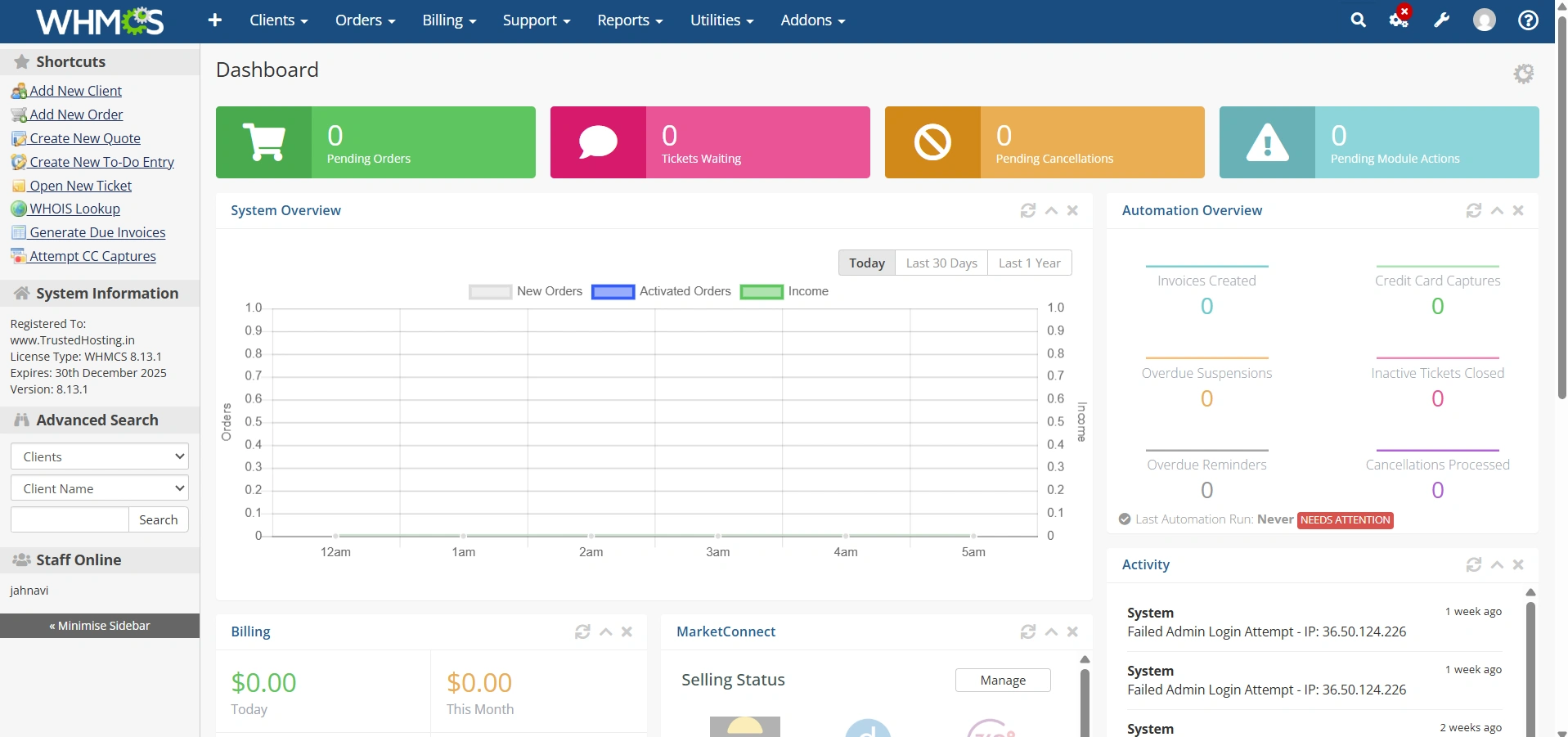
Step 2: Navigate to Mail Configuration
Go to:
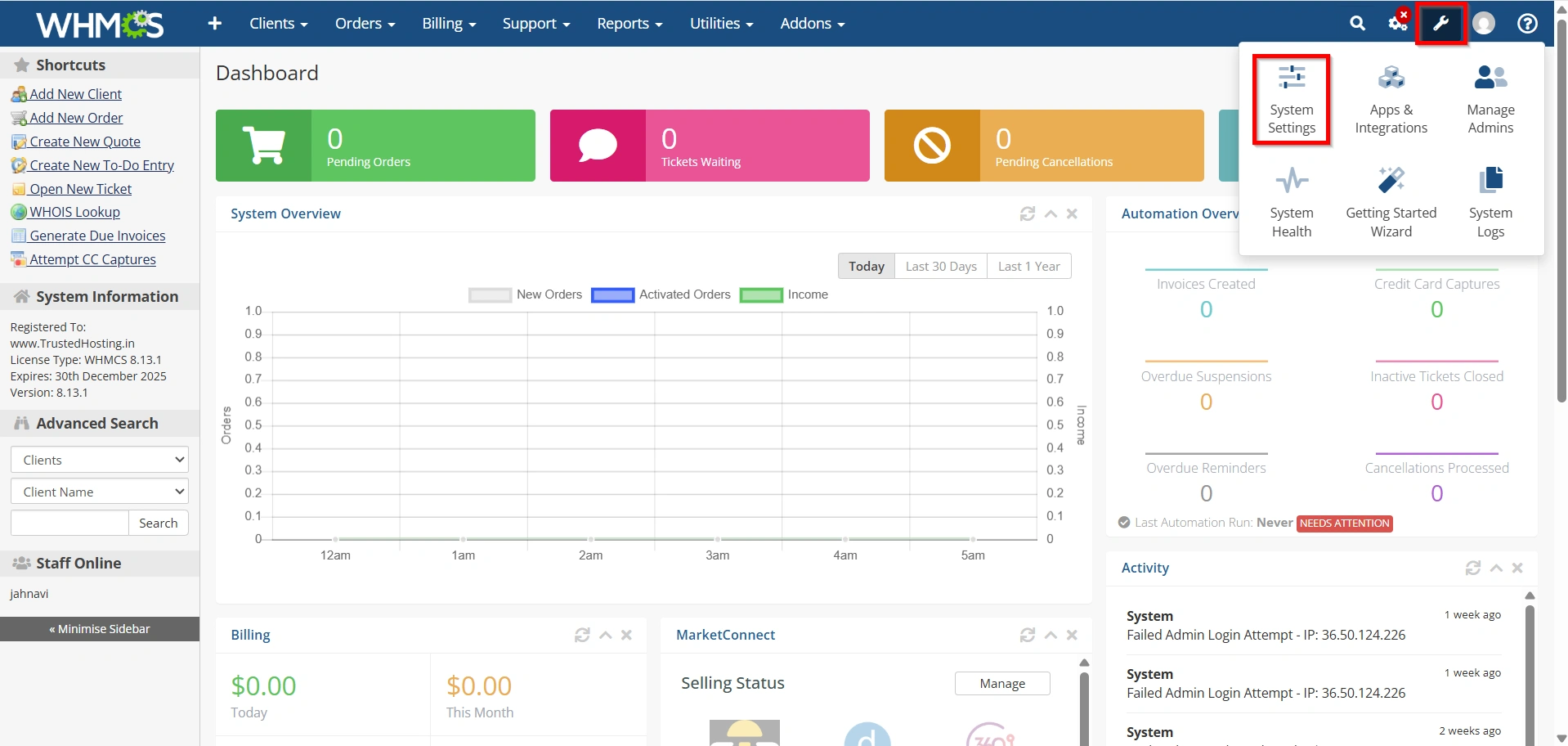
- Configuration Icon → System Settings
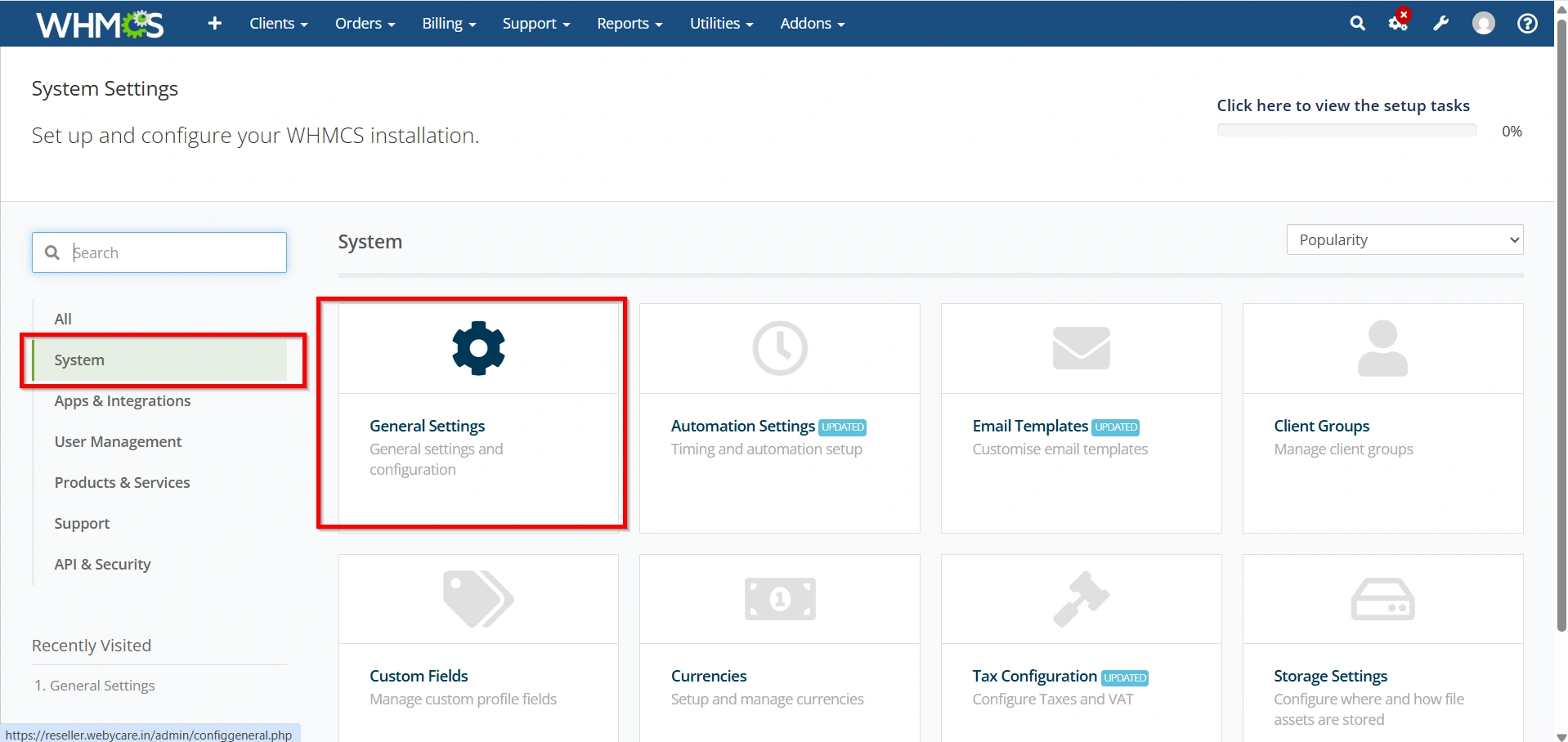
- General Settings
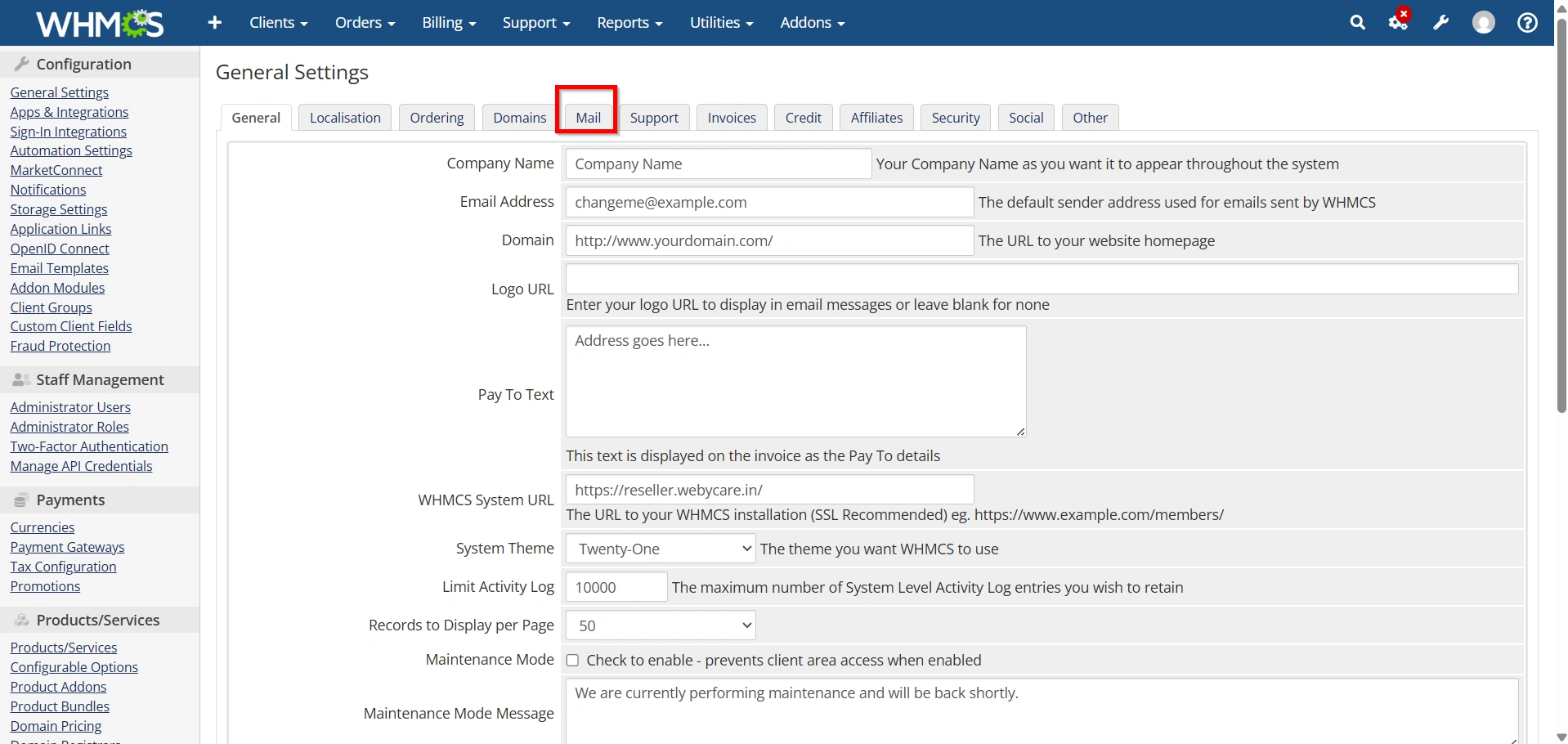
The Mail tab contains all email delivery settings.
Configuring SMTP Email Settings
Step 1: Select Mail Type
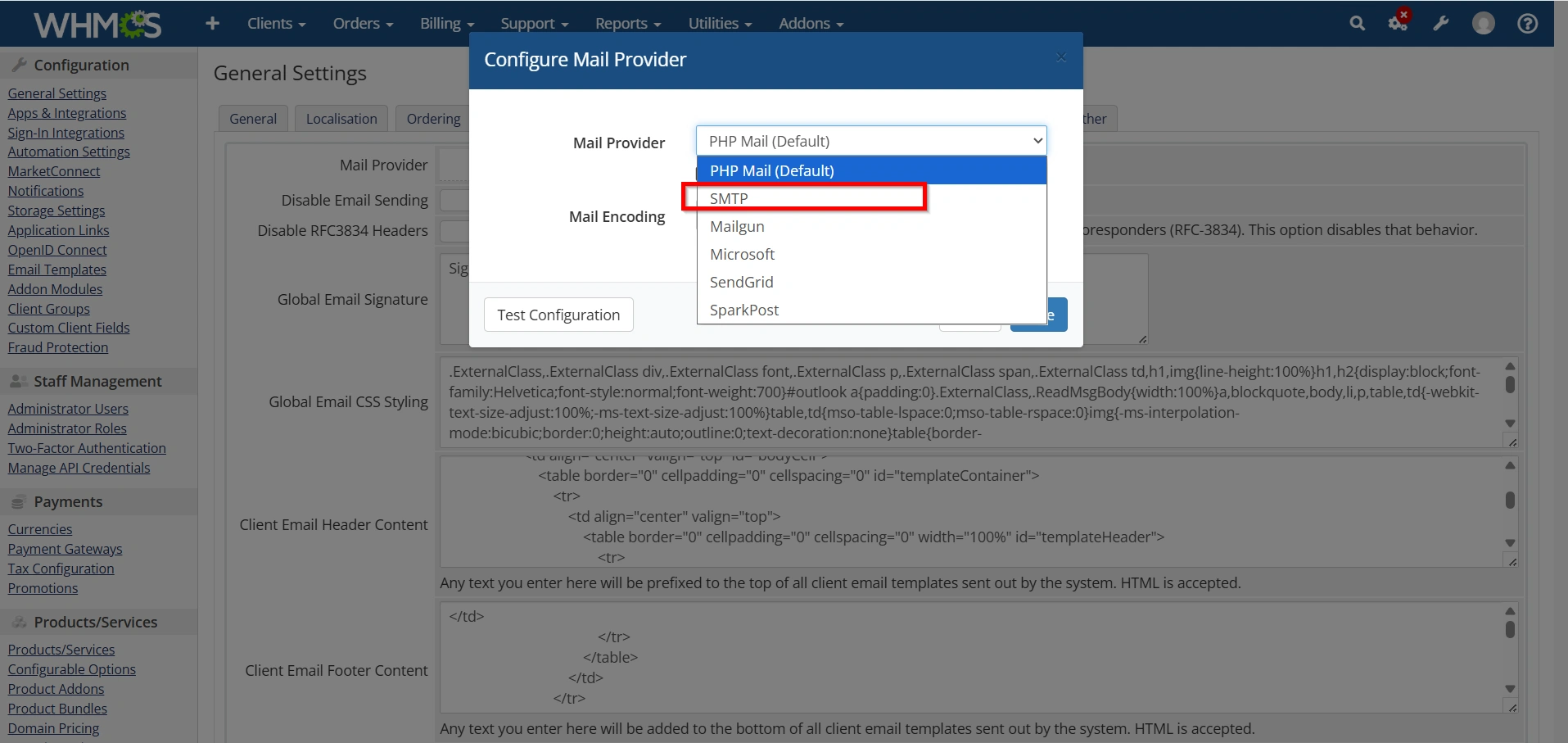
Under Mail Provider, click Configure Mail Provider
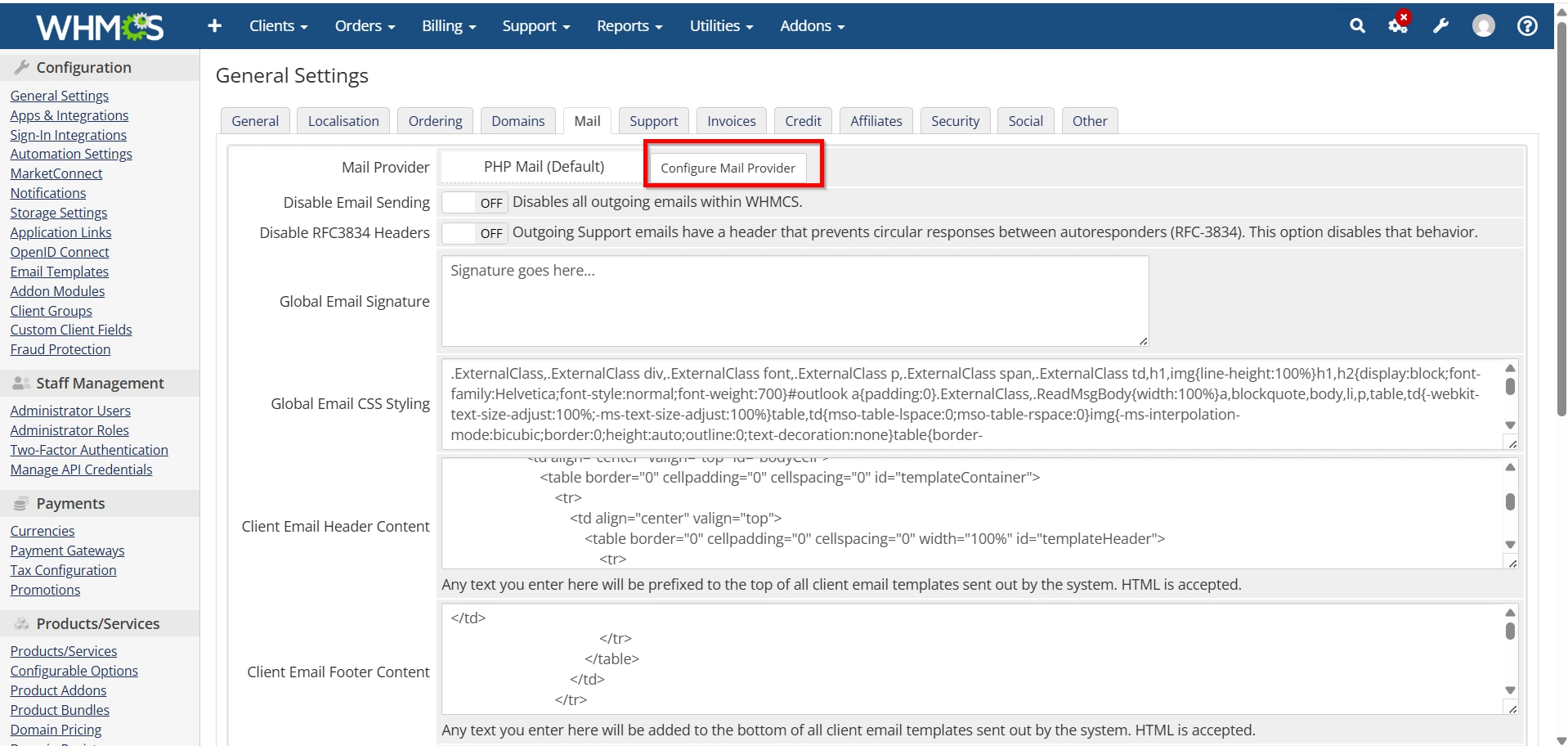
choose:
SMTP
This instructs WHMCS to send emails through an SMTP server instead of PHP Mail.
Enter SMTP Host
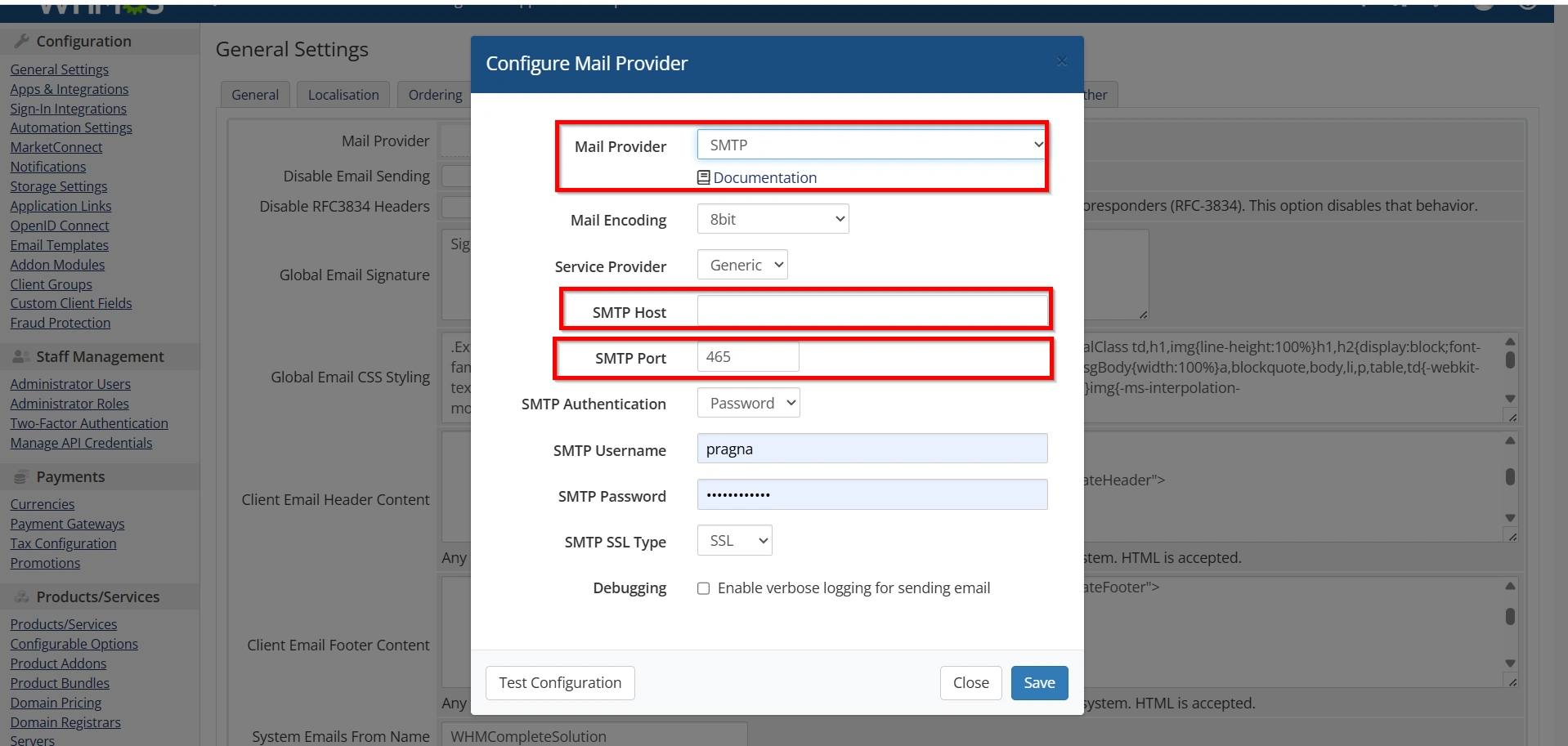
In the SMTP Host field, enter your mail server hostname.
Examples:
- mail.yourdomain.com
- smtp.gmail.com
- smtp.office365.com
- smtp.zoho.com
The SMTP Host tells WHMCS which mail server should be used to send outgoing messages. Be sure to enter the correct hostname provided by your email service provider.
Enter SMTP Port
Specify the SMTP port provided by your email service provider.
Common ports include:
| Port | Encryption |
|---|---|
| 25 | None |
| 465 | SSL |
| 587 | TLS |
Using the correct port is essential for successful email delivery. Most providers recommend using encrypted connections for better security.
Step 2: Select SMTP SSL Type
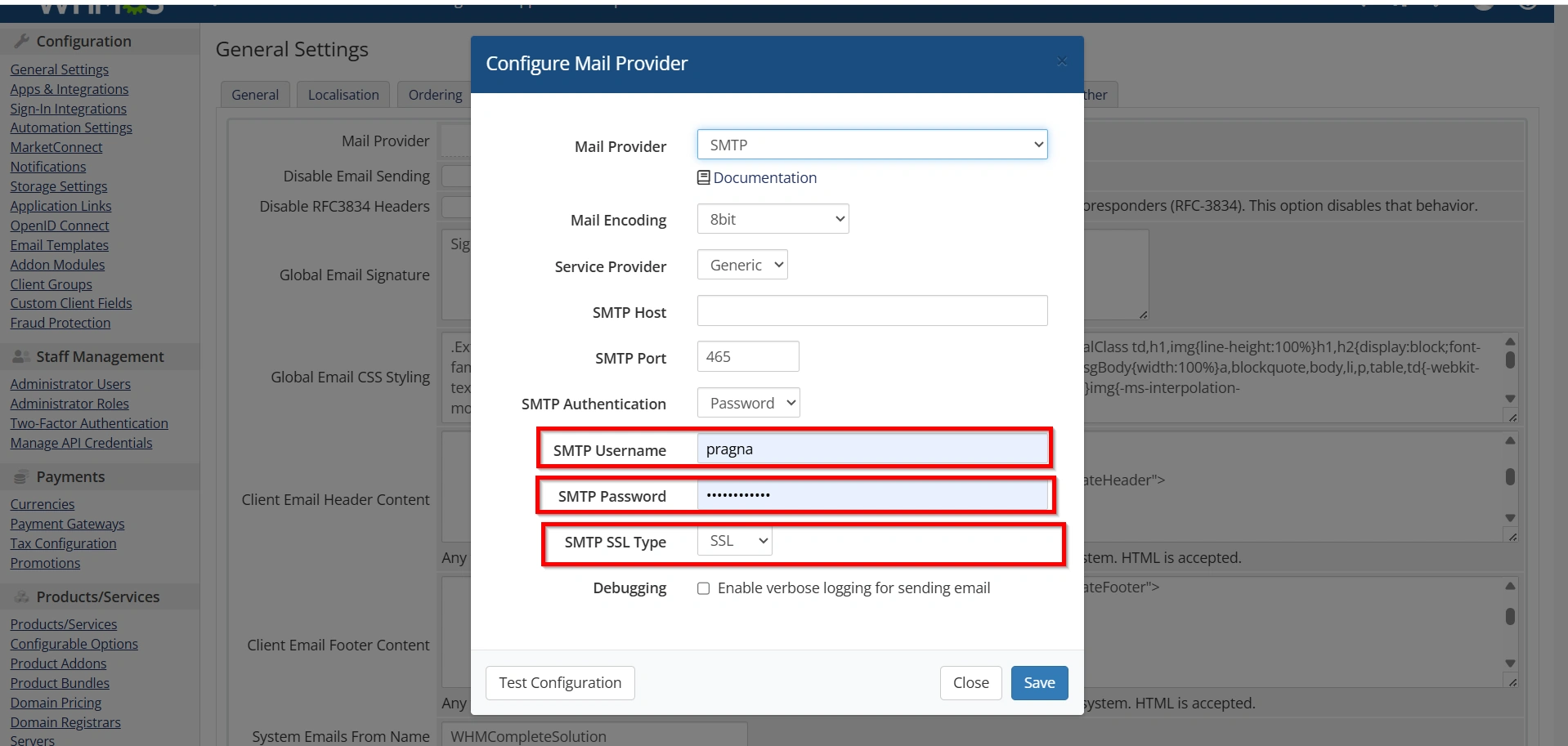
Choose the appropriate encryption method:
- None
- SSL
- TLS
Most modern email providers recommend TLS (Port 587) because it offers secure encrypted communication between WHMCS and the mail server.
Enter SMTP Username
Provide the full email address used for authentication.
Example:
The SMTP Username verifies that your WHMCS installation has permission to use the mail server for sending emails.
Enter SMTP Password
Enter the password for the SMTP email account.
Ensure the password is correct to avoid authentication errors. An incorrect password will prevent WHMCS from connecting to the SMTP server and sending emails.
Step 3: Save Changes
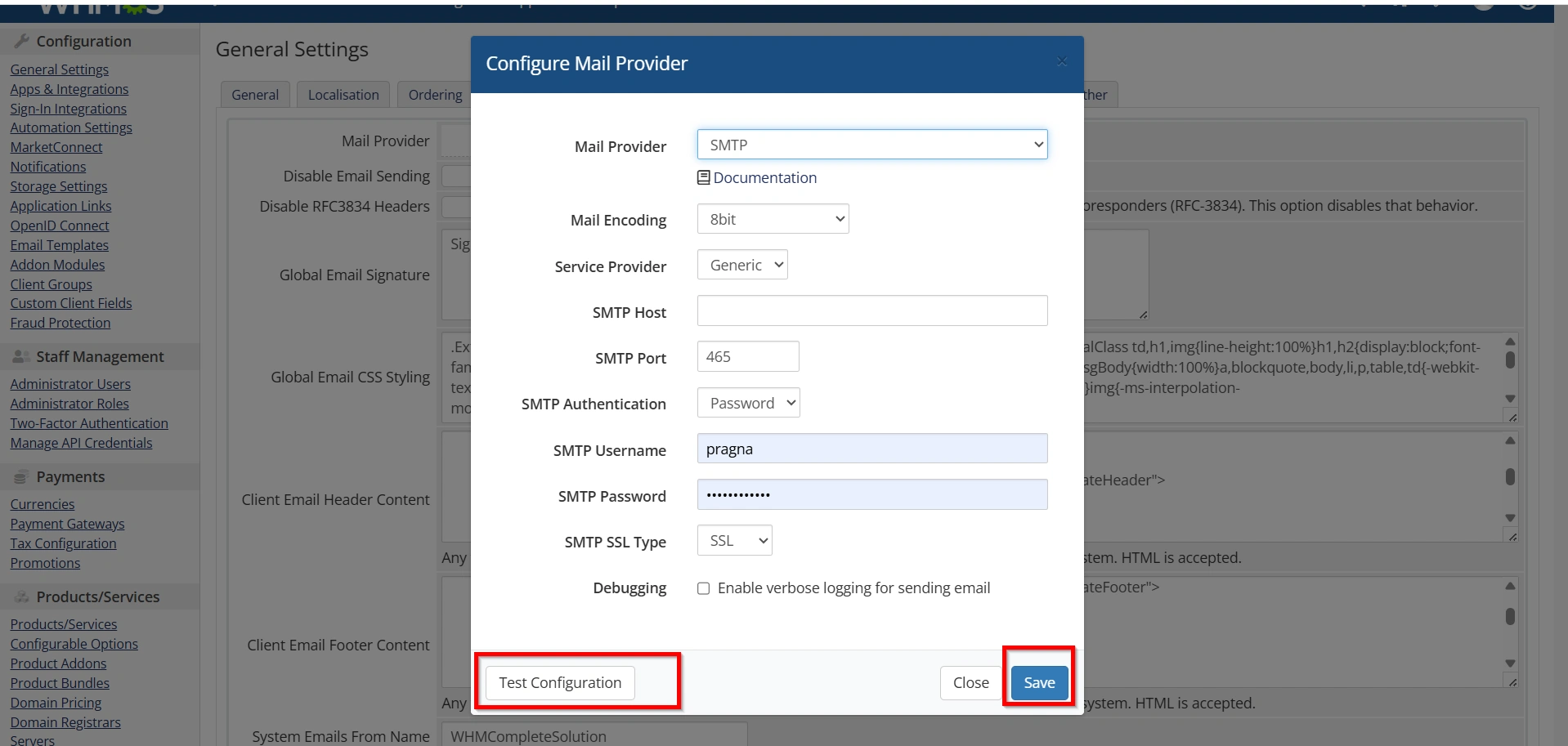
Click Save Changes to store your SMTP configuration.
Once saved, WHMCS will begin using the SMTP server for all outgoing email communications.
Testing SMTP Configuration
After saving the settings:
- Navigate to Configuration → System Settings → General Settings → Mail.
- Use the Test Mail Configuration option.
- Enter a destination email address.
- Send a test email.
- Verify that the email is received successfully.
Testing the configuration helps confirm that your SMTP settings are correct and that emails can be delivered without errors. If the test fails, review the SMTP host, port, username, password, and encryption settings.
Common SMTP Settings
Gmail SMTP
- SMTP Host: smtp.gmail.com
- Port: 587
- Encryption: TLS
Microsoft 365 SMTP
- SMTP Host: smtp.office365.com
- Port: 587
- Encryption: TLS
Zoho Mail SMTP
- SMTP Host: smtp.zoho.com
- Port: 587
- Encryption: TLS
Always consult your email provider’s documentation for the most up-to-date SMTP settings.
Benefits of Configuring Mail Settings in WHMCS
- Improves Email Deliverability
- Enhances Professional Branding
- Supports Automated Client Communication
- Reduces the Risk of Emails Being Marked as Spam
- Centralizes Email Management
Conclusion
Proper SMTP Email Configuration in WHMCS ensures reliable delivery of invoices, support notifications, order confirmations, and other important client communications. By configuring the correct SMTP server settings and testing email delivery, you can improve email reliability and provide a better experience for your customers. Regular maintenance of your SMTP Email Configuration in WHMCS settings helps keep email communication secure, professional, and dependable.
Originally published on WebyStrata.com Blog.
Related Articles