Latest Updates
How to Configure Currency Settings in WHMCS
How to Configure Currency Settings in WHMCS Currency Settings in WHMCS allow you to configure the currencies your clients can use when ordering products and services. Whether you serve customers locally or internationally, properly…
How to Configure Currency Settings in WHMCS
Currency Settings in WHMCS allow you to configure the currencies your clients can use when ordering products and services. Whether you serve customers locally or internationally, properly configuring currencies is essential for accurate pricing, invoicing, and payment processing.
Currency Settings in WHMCS play a vital role in managing global billing and pricing. Whether you operate a web hosting company, domain registration business, or SaaS platform, properly configured Currency Settings in WHMCS ensure customers can view and pay for services in their preferred currency. This not only improves user experience but also helps maintain accurate financial records.
What are Currency Settings in WHMCS?
Currency Settings in WHMCS control how product prices, invoices, transactions, and payments are displayed and processed. These settings allow you to define the primary currency used by your business and add additional currencies for international customers.
The flexibility of Currency Settings in WHMCS allows businesses to expand internationally without manually managing currency conversions. By configuring exchange rates and multiple currencies, administrators can provide localized pricing while maintaining a single billing system.
Why Configure Currency Settings in WHMCS?
One of the biggest advantages of Currency Settings in WHMCS is the ability to automate currency management. Customers from different countries can place orders confidently when prices are displayed in familiar currencies, reducing confusion during checkout.
Benefits include:
- Display prices in customers’ preferred currencies.
- Support international clients and global sales.
- Automatically calculate prices using exchange rates.
- Generate invoices in the selected currency.
- Reduce pricing errors caused by manual conversions.
- Improve customer trust with transparent pricing.
- Simplify billing and payment management.
- Enhance the overall purchasing experience.
By configuring Currency Settings correctly, you can provide accurate pricing while making it easier for customers to place orders and complete payments.
How to Configure Currency Settings in WHMCS
Follow the steps below to configure Currency Settings in your WHMCS installation.
Step 1: Log in to WHMCS Admin Area
First, access your WHMCS administration panel.
- Open your WHMCS admin login page.
- Enter your administrator username and password.
- Click Login to access the admin dashboard.
After logging in, you will be able to manage all billing, payment, and currency-related settings.
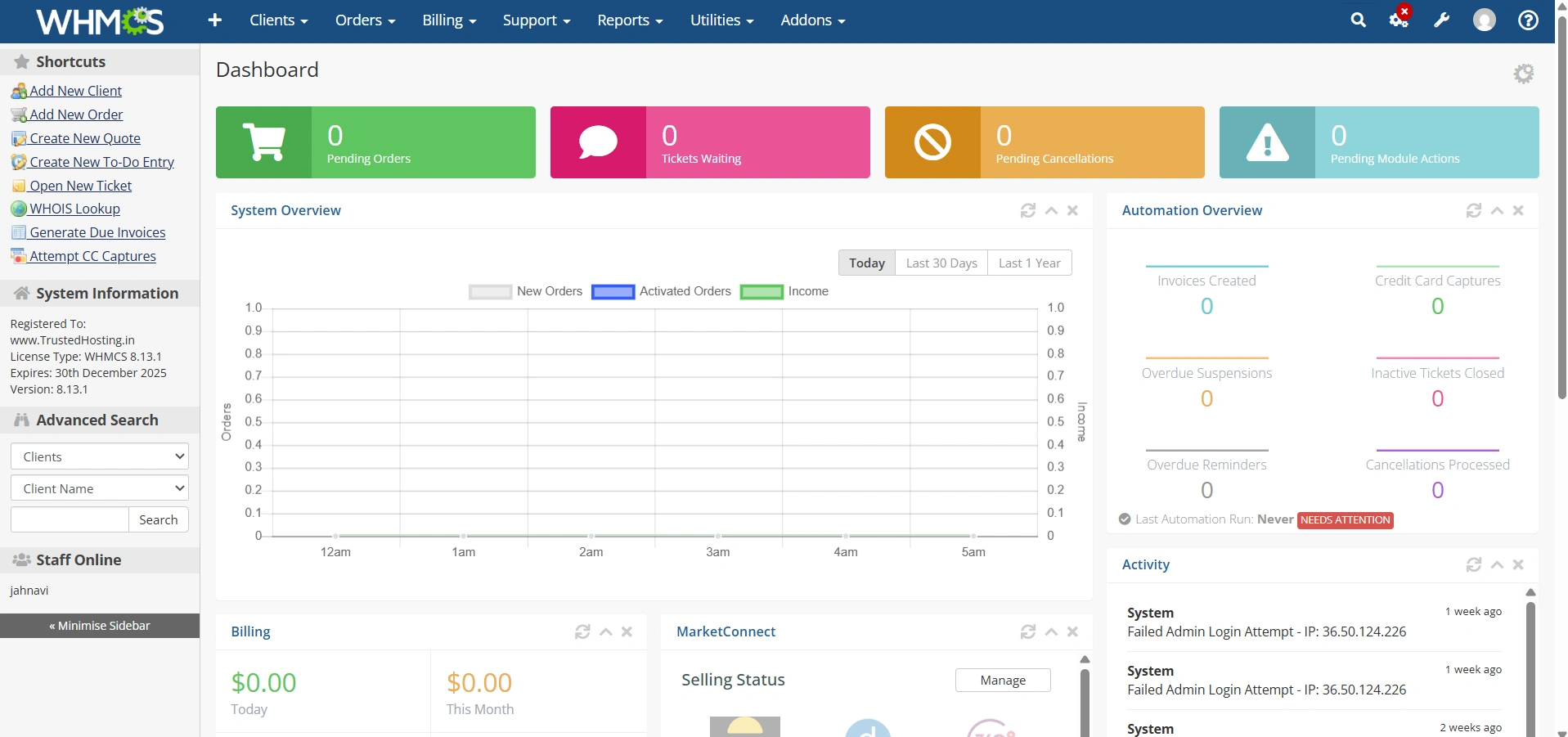
Step 2: Open Currency Settings
Once you are inside the WHMCS admin area:
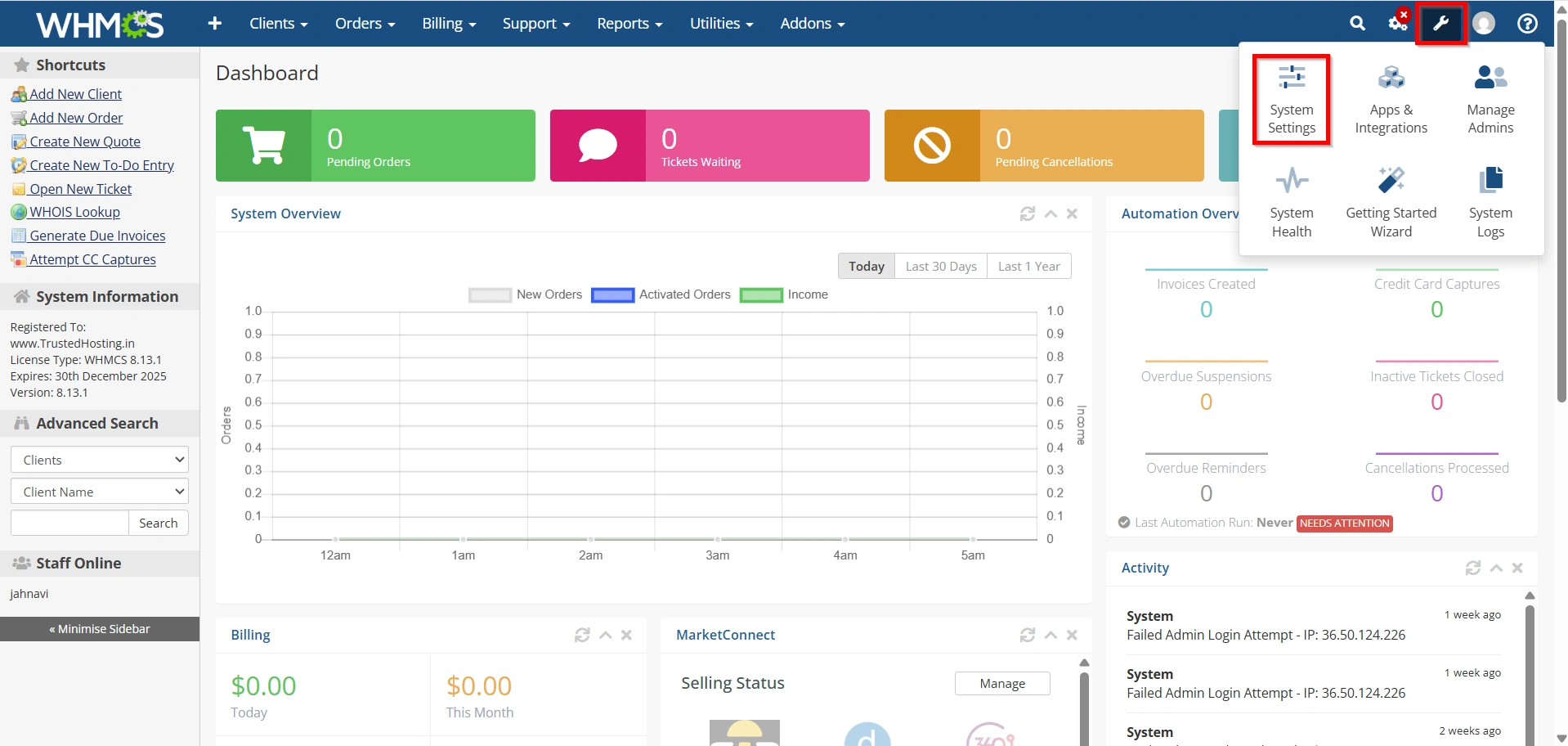
- Click the Configuration icon from the top navigation menu.
- Select System Settings.
3.Click Currencies.
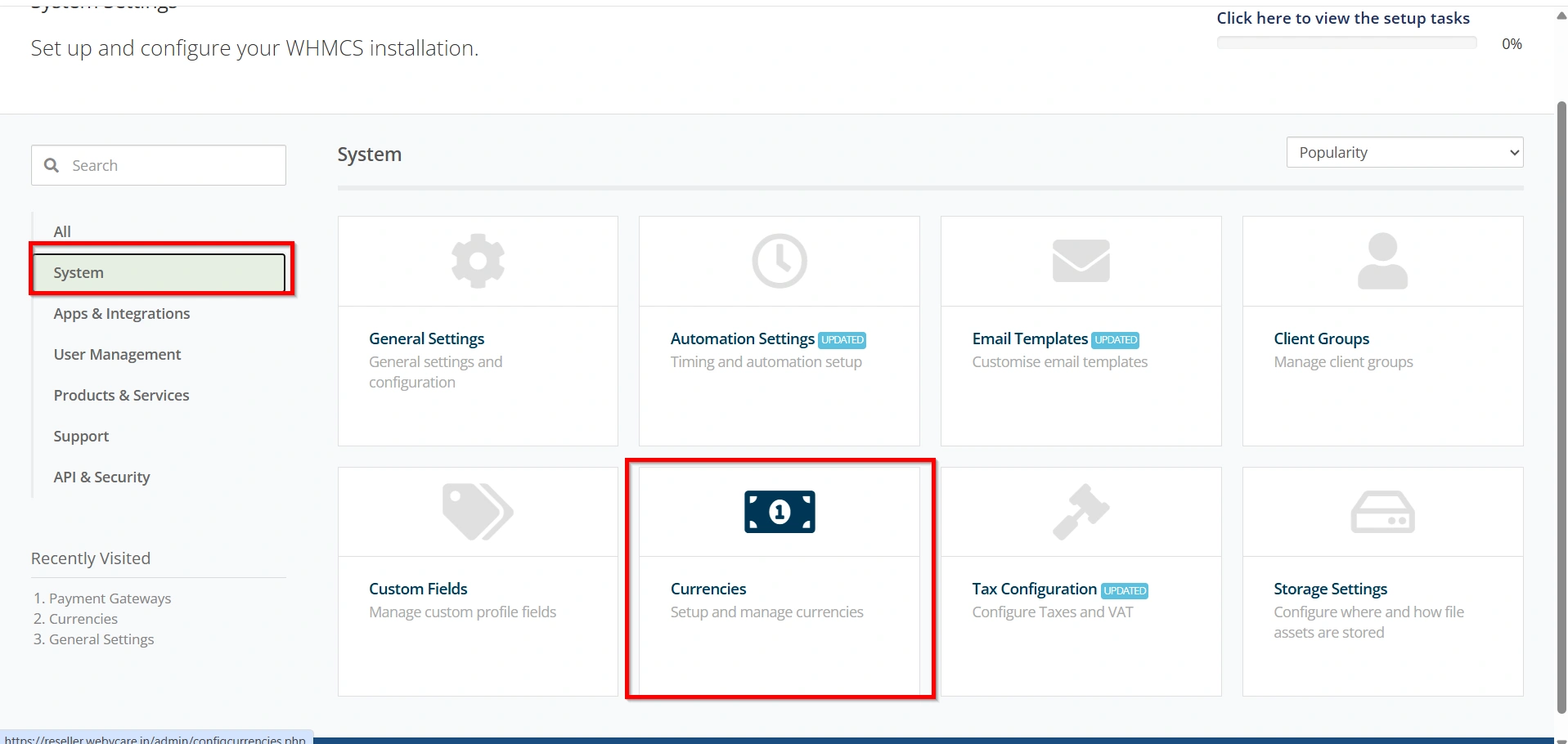
This section contains all available currency configurations for your WHMCS installation.
Step 3: Review the Default Currency
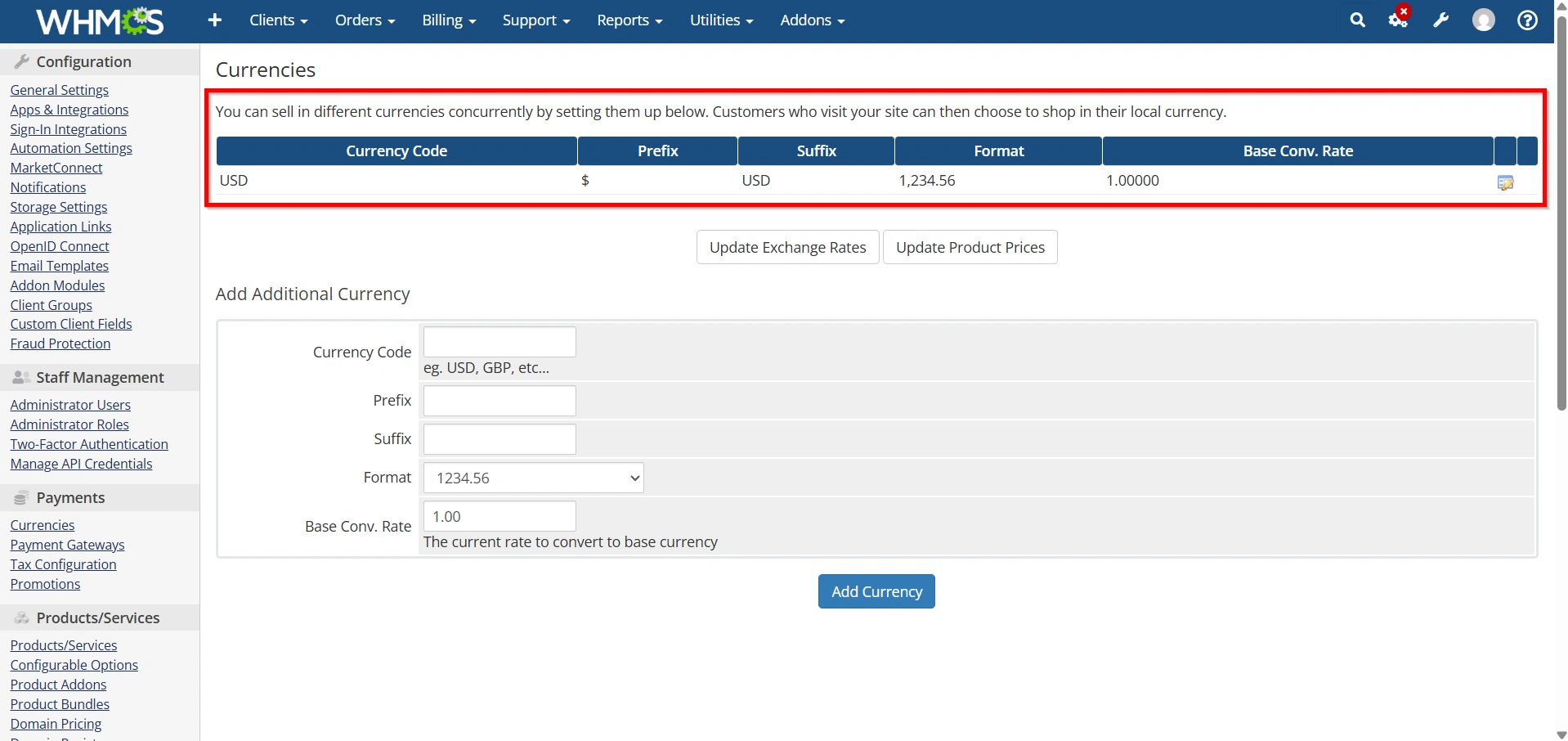
WHMCS automatically creates a default currency during installation.
To review the existing currency:
- Locate the default currency in the currency list.
- Verify the following details:
- Currency Code
- Currency Prefix
- Currency Suffix
- Decimal Format
- Exchange Rate
- Confirm that the currency matches your primary billing currency.
The default currency acts as the base currency used for all exchange rate calculations within WHMCS.
Step 4: Add a New Currency
If you want to accept payments in multiple currencies, you can add additional currencies.
- In the Currencies page, Under Additional Currency.
- Enter the required information:
- Currency Code (USD, EUR, GBP, AUD, etc.)
- Currency Prefix ($, €, £, etc.)
- Currency Suffix (optional)
- Format
- Exchange Rate
- Review all information carefully.
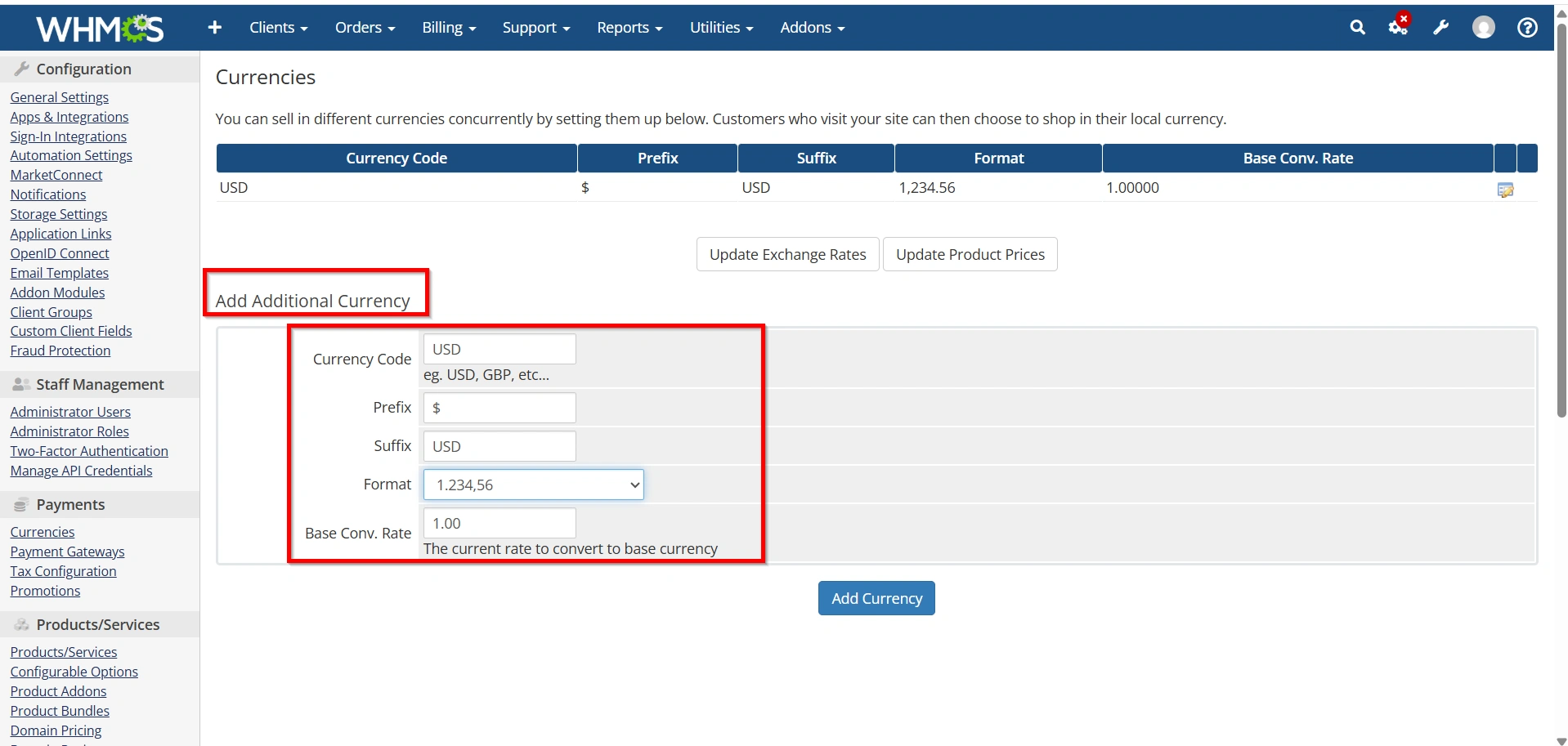
4. Click Add Currency.
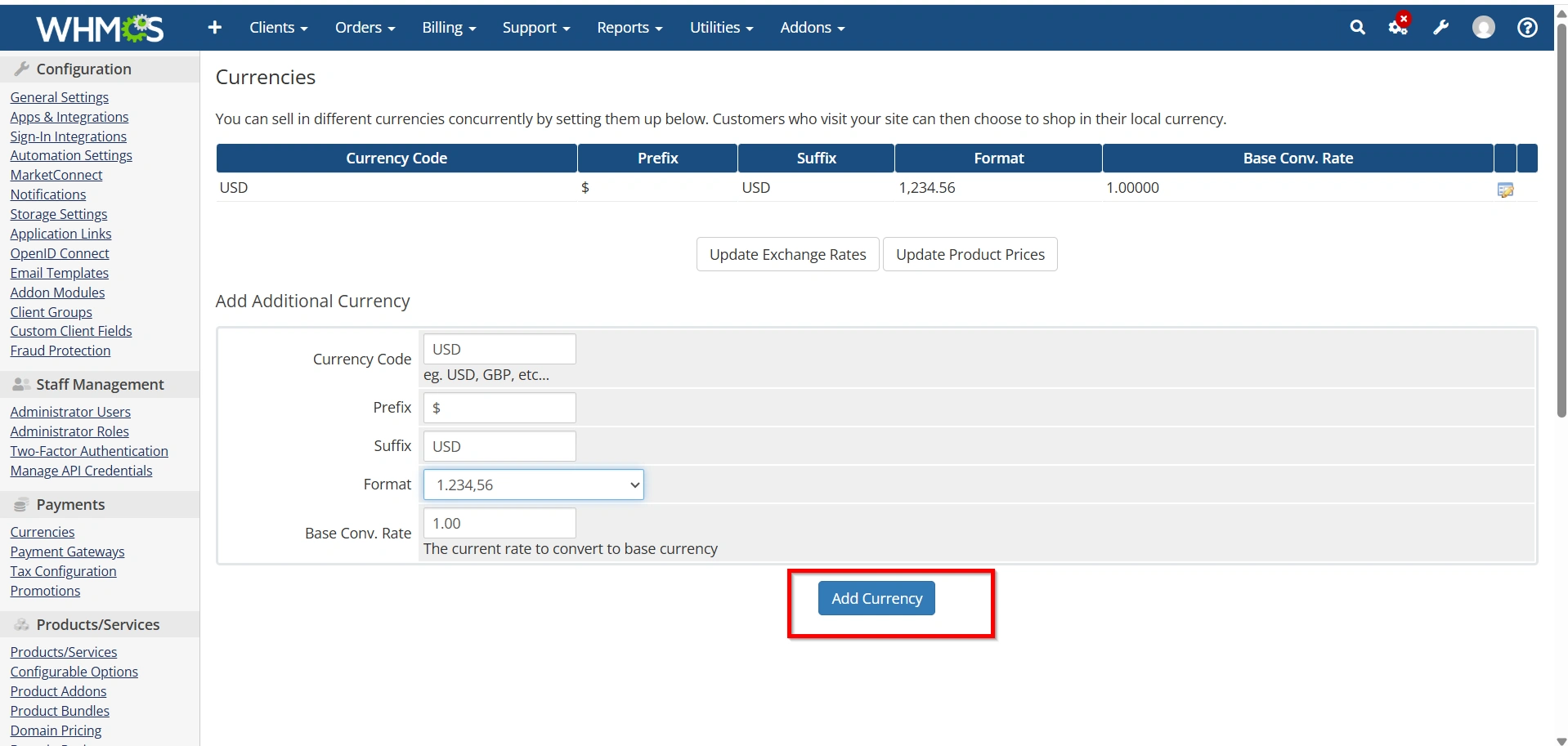
The new currency will now appear in the list of available currencies and can be used by your customers during the ordering process.
Step 5: Configure Exchange Rates
Exchange rates determine how prices are converted from your default currency to other currencies.
To update exchange rates:
- Click Update Exchange Rates.
- Review the list of available currencies.
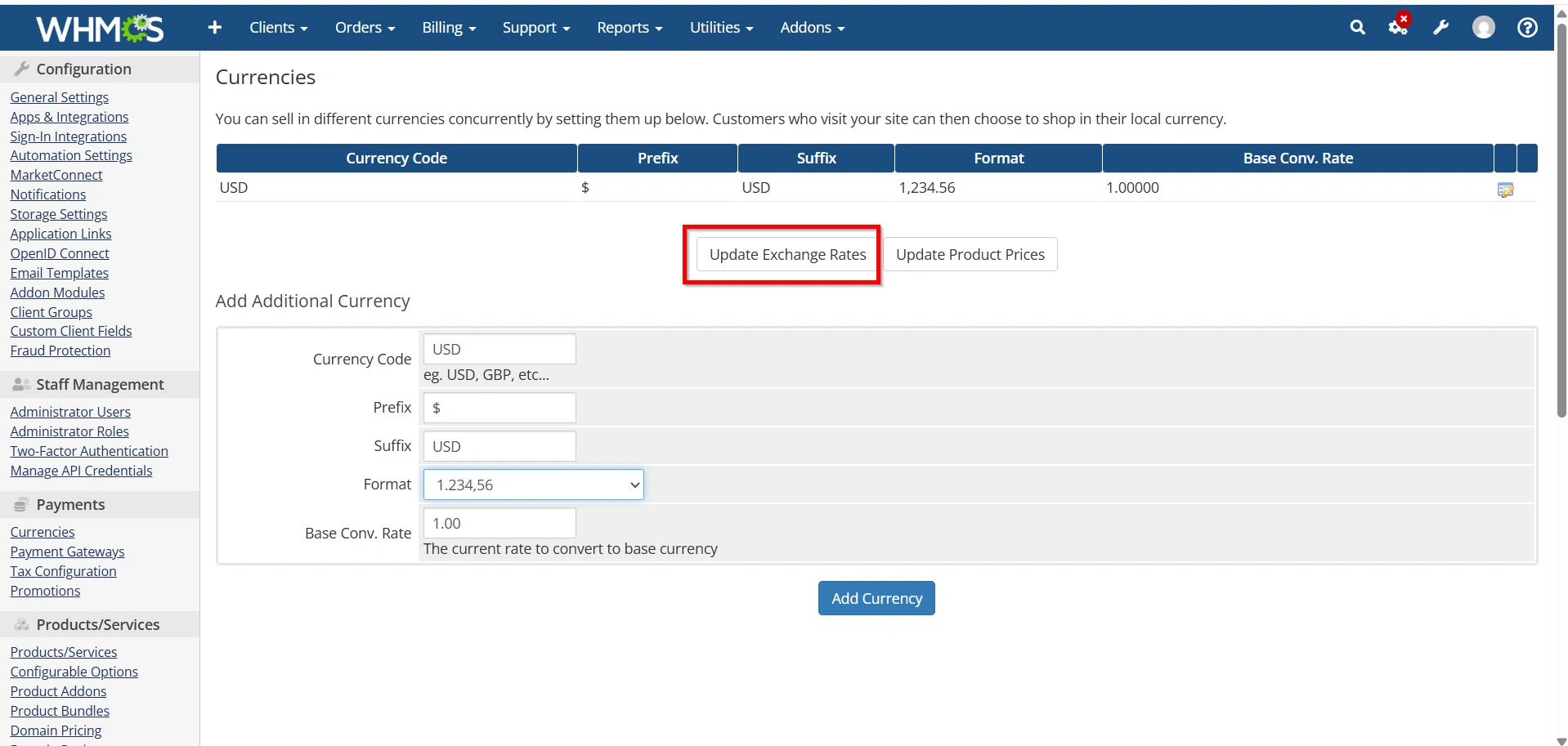
3. Click the Edit icon for the currency you wish to modify.
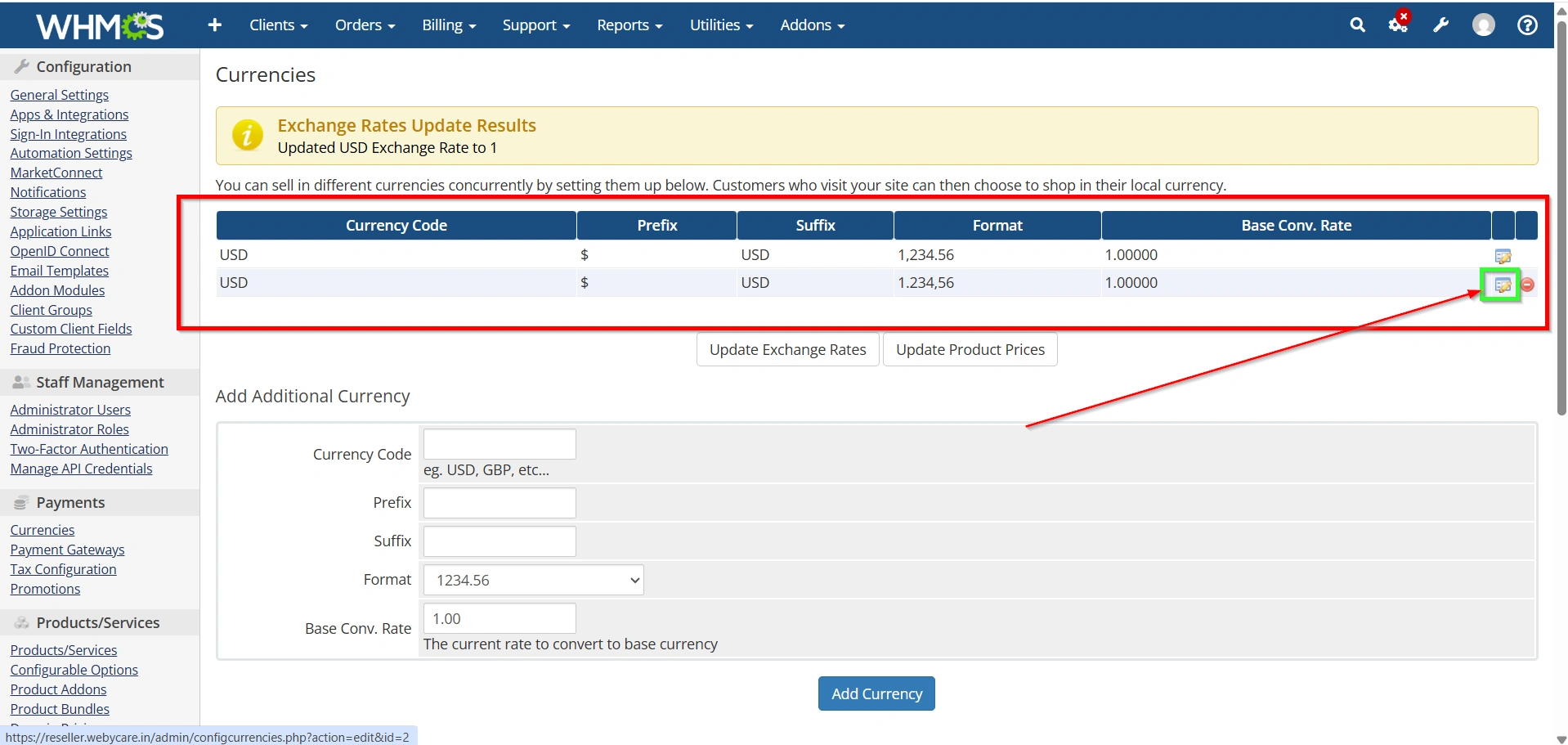
4. Enter the appropriate exchange rate relative to the default currency.
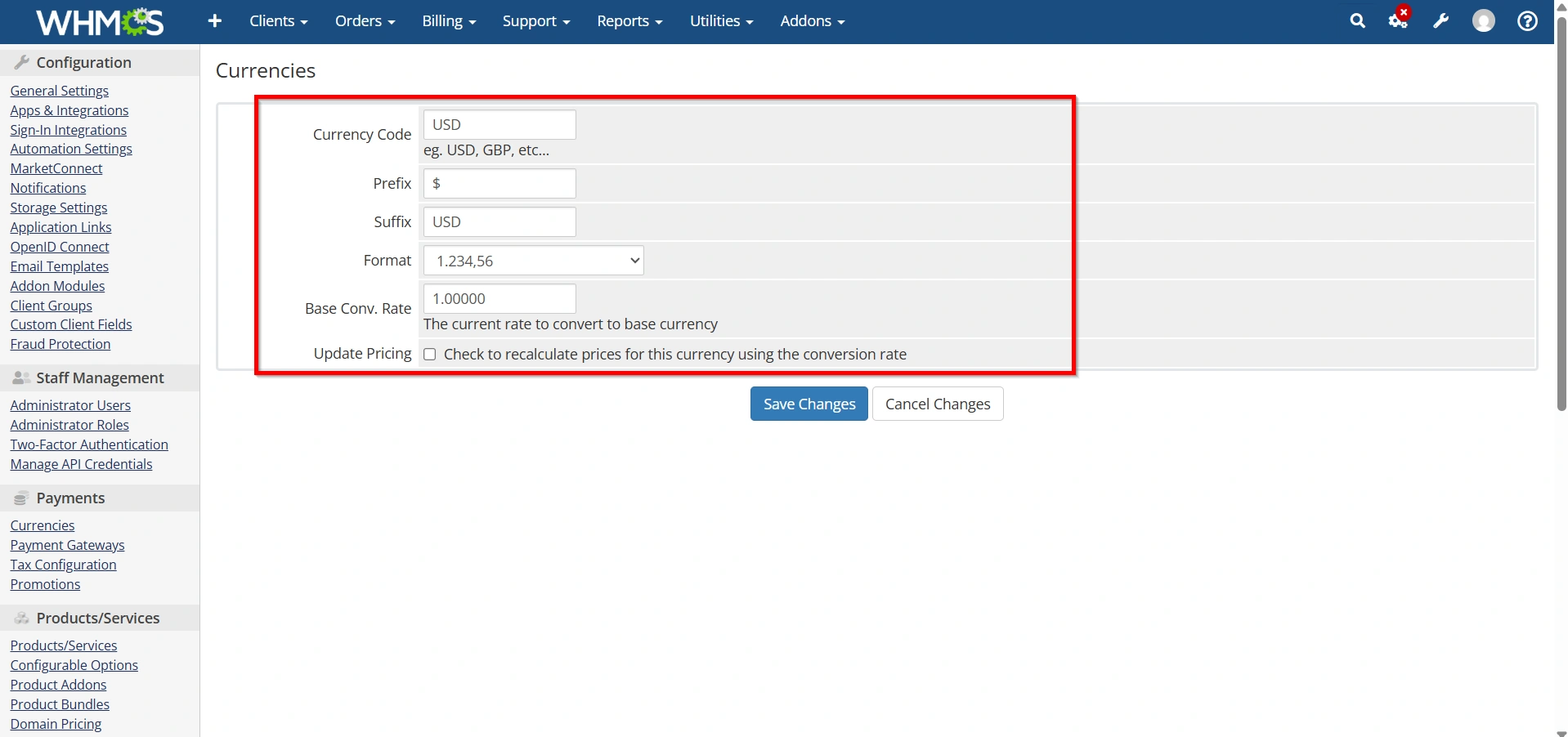
5. Save your changes.
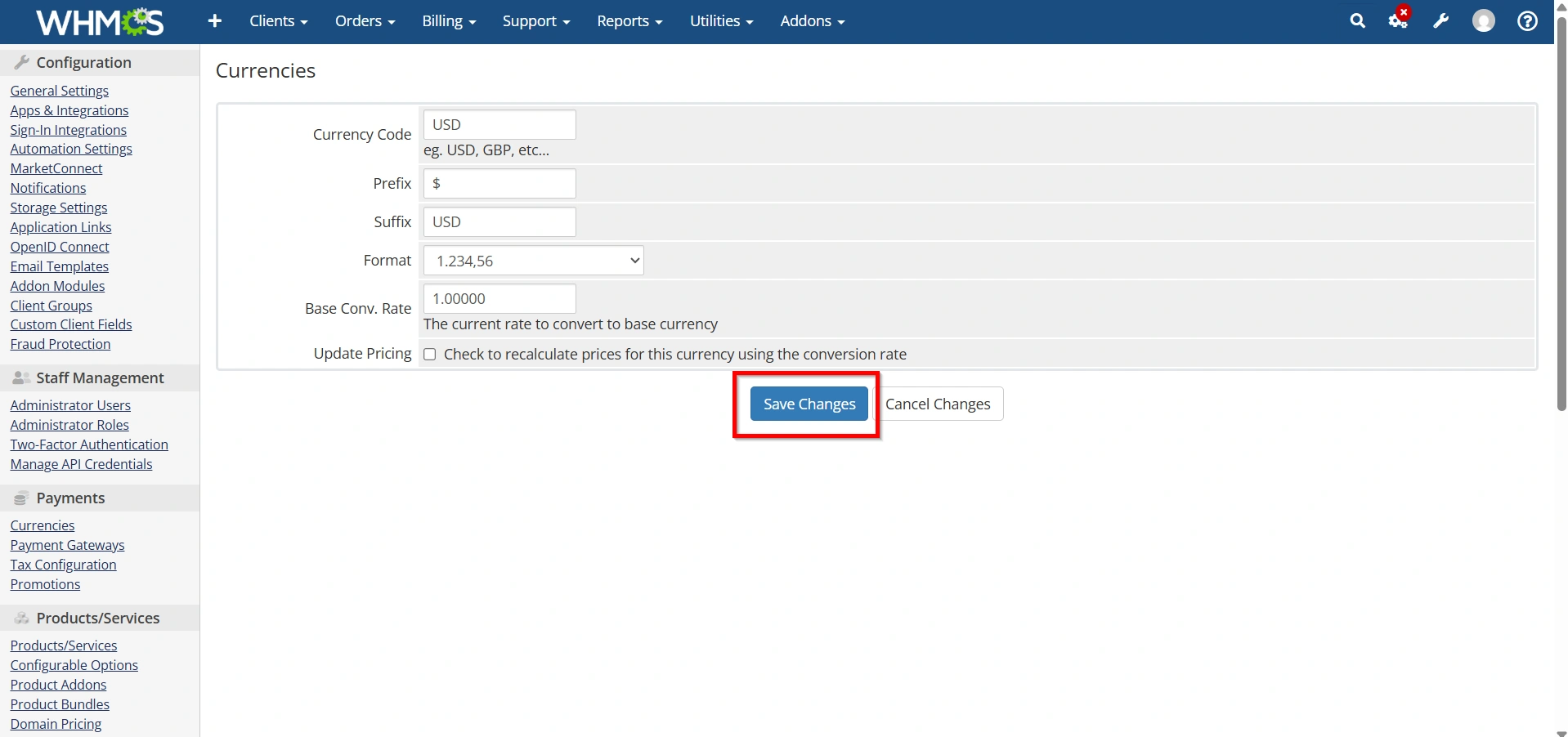
Accurate exchange rates ensure that product pricing remains consistent across all currencies and helps prevent revenue loss due to incorrect conversions.
Step 6: Test an Order
Finally, place a test order using a secondary currency.
Verify the following:
- Product pricing accuracy
- Invoice generation
- Currency conversion calculations
- Payment gateway compatibility
- Order confirmation emails
- Transaction records
Successful testing confirms that the currency configuration is working correctly throughout the entire ordering and billing process.
Best Practices for Managing WHMCS Currencies
To maintain accurate pricing and billing, consider the following best practices:
- Regularly review exchange rates.
- Update currency values when market rates change significantly.
- Test new currencies before enabling them for customers.
- Use a consistent pricing strategy across currencies.
- Monitor payment gateway compatibility with supported currencies.
- Review invoices periodically for conversion accuracy.
Following these practices can help reduce billing discrepancies and improve the customer experience.
Benefits of Configuring Currency Settings
Properly configured Currency Settings provide several advantages:
- Supports international customers.
- Displays prices in local currencies.
- Improves customer confidence during checkout.
- Simplifies global billing operations.
- Reduces manual currency conversion work.
- Improves pricing transparency.
- Enhances customer satisfaction.
- Helps businesses expand into new markets.
Conclusion
Currency Settings are an important part of any WHMCS installation that serves customers across different countries and regions. By configuring a default currency, adding additional currencies, managing exchange rates, and testing the checkout process, you can ensure accurate pricing and smooth billing operations.
Regularly reviewing and maintaining your currency settings helps provide a professional purchasing experience while ensuring your business remains prepared to serve a global customer base.
Originally published on WebyStrata.com Blog.
Related Articles