cPanel
Discover the Steps To Use WordPress do_shortcode
Discover the Steps To Use WordPress do_shortcode WordPress is well-known for its flexibility and ease of customization. One of the features that makes WordPress so powerful is its shortcode functionality. Shortcodes allow users to…
Discover the Steps To Use WordPress do_shortcode
WordPress is well-known for its flexibility and ease of customization. One of the features that makes WordPress so powerful is its shortcode functionality. Shortcodes allow users to insert dynamic content such as contact forms, image sliders, galleries, tables, and other plugin-generated elements without writing complex code. However, by default, shortcodes only work within posts, pages, and widget areas.
There are situations where website owners want to display shortcode-generated content in other locations, such as the website header, footer, sidebar, or custom theme templates. In such cases, the WordPress do_shortcode() function becomes extremely useful. This function enables WordPress to process and display shortcodes directly from PHP files, allowing you to place dynamic content virtually anywhere on your website.
In this guide, you will learn how to Use WordPress do_shortcode with a plugin, understand its benefits, and discover best practices for implementing it safely.
What is the WordPress do_shortcode() Function?
The do_shortcode() function is a built-in WordPress function that executes a shortcode and displays its output. Instead of placing a shortcode inside a page or post, you can insert it directly into a theme file using PHP.
For example:
<?php echo do_shortcode('[metaslider id="123"]'); ?>
When WordPress encounters this code, it processes the shortcode and displays the resulting content, such as a slider, form, or gallery.
Many developers Use WordPress do_shortcode when they need to display plugin-generated content in areas where shortcodes are not supported by default.
Prerequisites
Before proceeding, ensure that:
- You have access to your hosting control panel.
- You have a complete backup of your WordPress website.
- You know the shortcode you want to display.
- A child theme is being used to prevent changes from being overwritten during theme updates.
- The plugin generating the shortcode is installed and activated.
Using a child theme is highly recommended because theme updates can overwrite modifications made directly to theme files.
Steps to Use WordPress do_shortcode with a Plugin
In this example, we will use the MetaSlider plugin to display a slider in the website header using the WordPress do_shortcode() function.
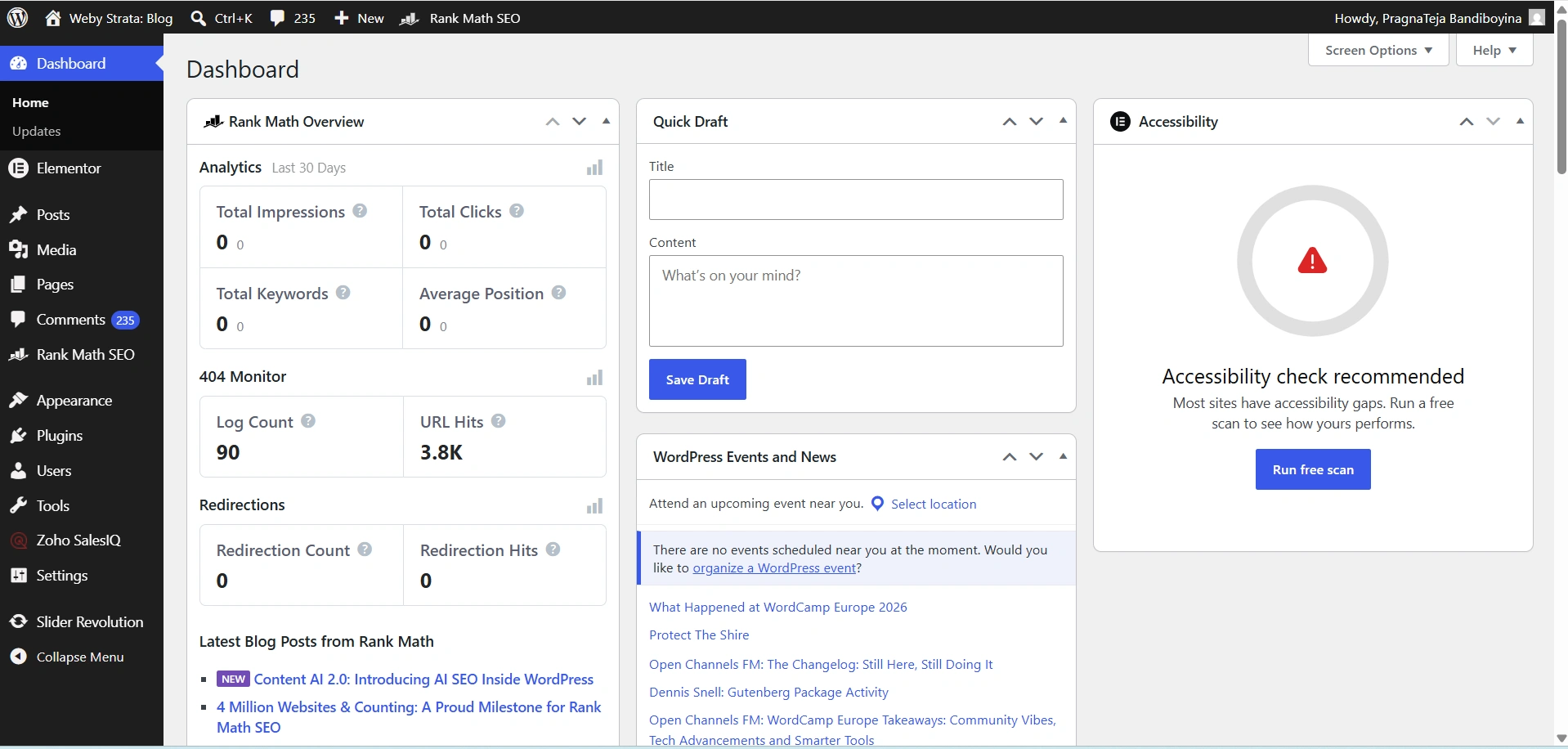
Step 1: Log in to Your WordPress Dashboard
Begin by accessing your WordPress administration area.
Open your web browser and visit:
https://yourdomain.com/wp-admin
Enter your administrator username and password, then click Log In.
Once logged in, you will be redirected to the WordPress Dashboard.
Step 2: Install and Activate MetaSlider
First, install the plugin that generates the shortcode.
- Navigate to Plugins → Add New.
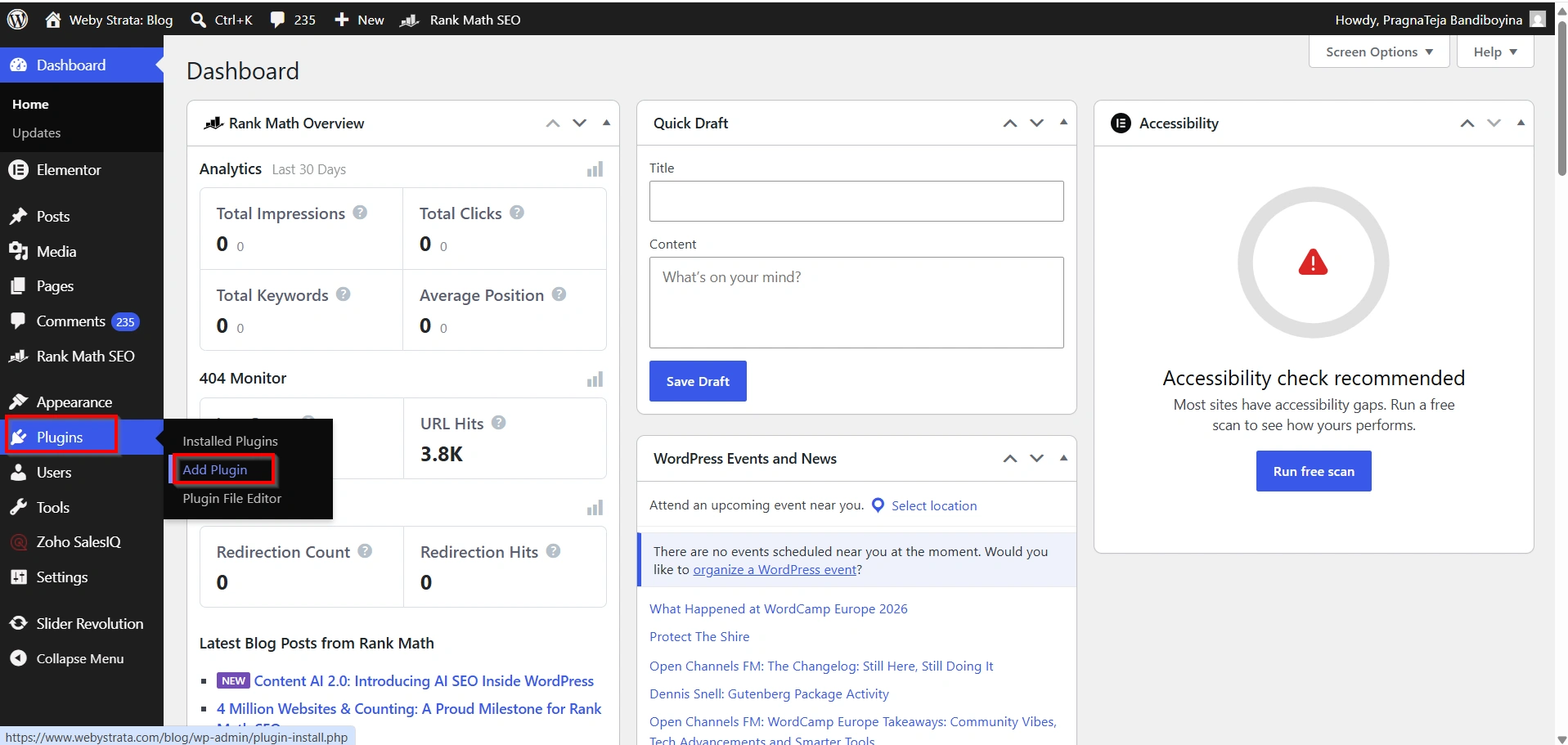
2. Search for MetaSlider.
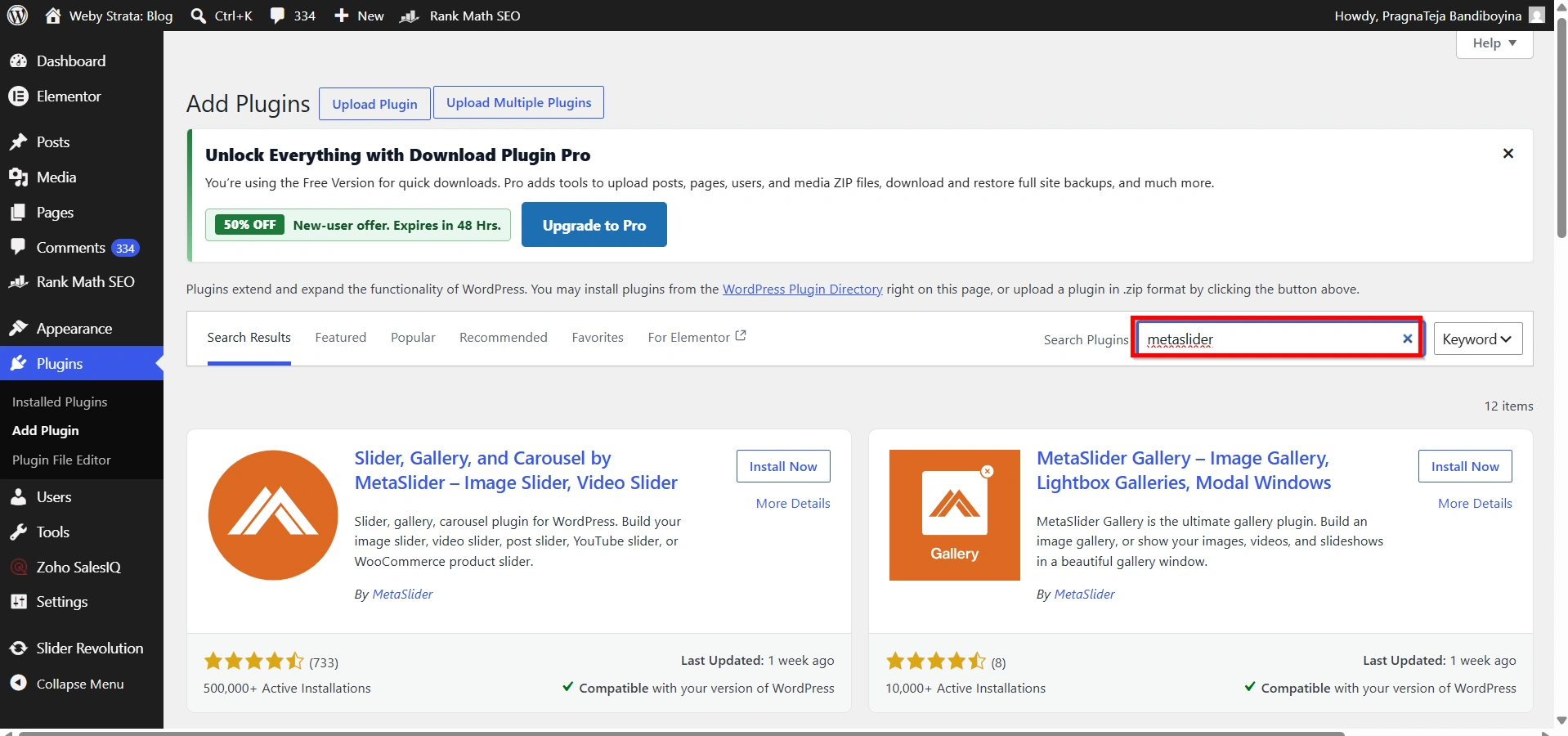
3. Click Install Now.
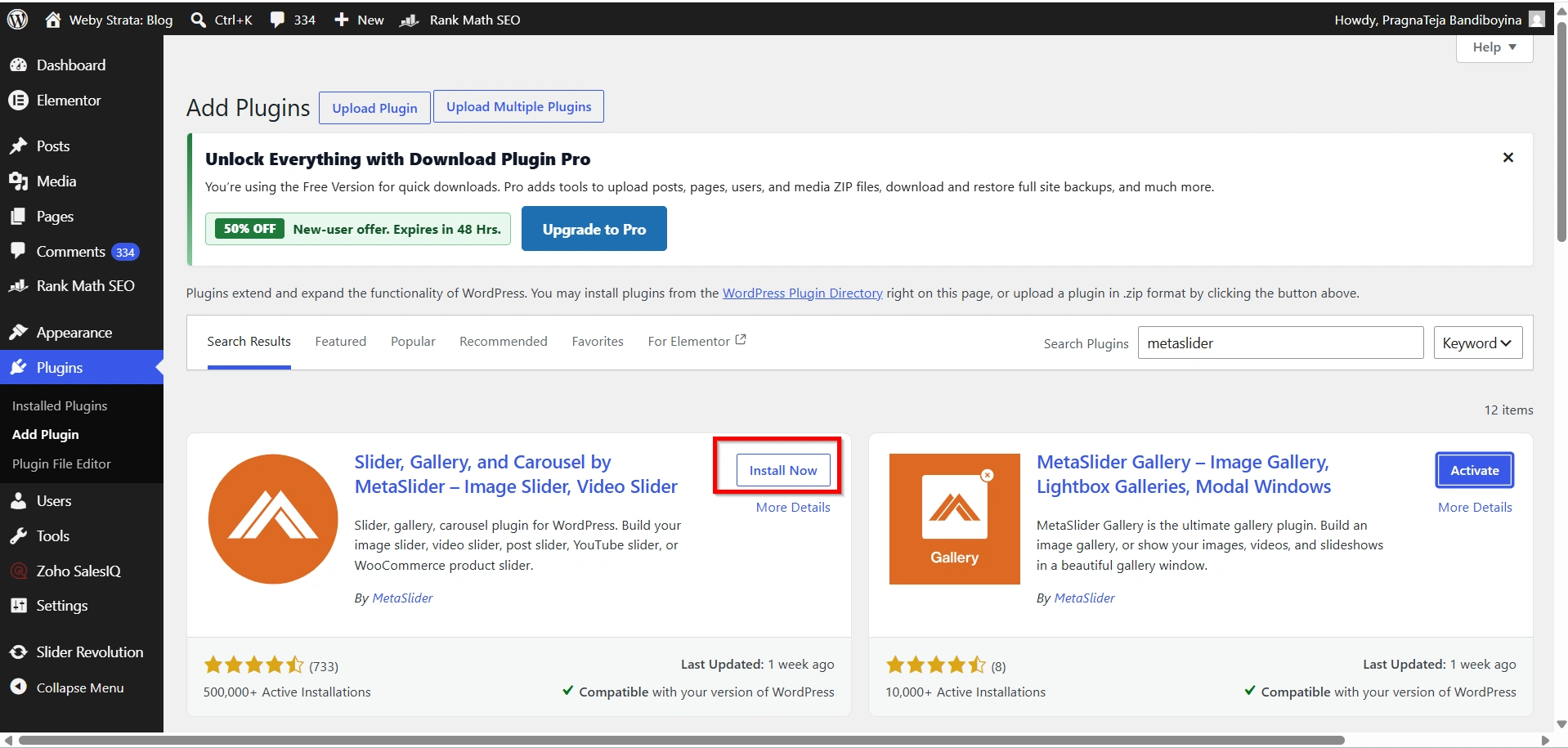
4. Once installation is complete, click Activate.
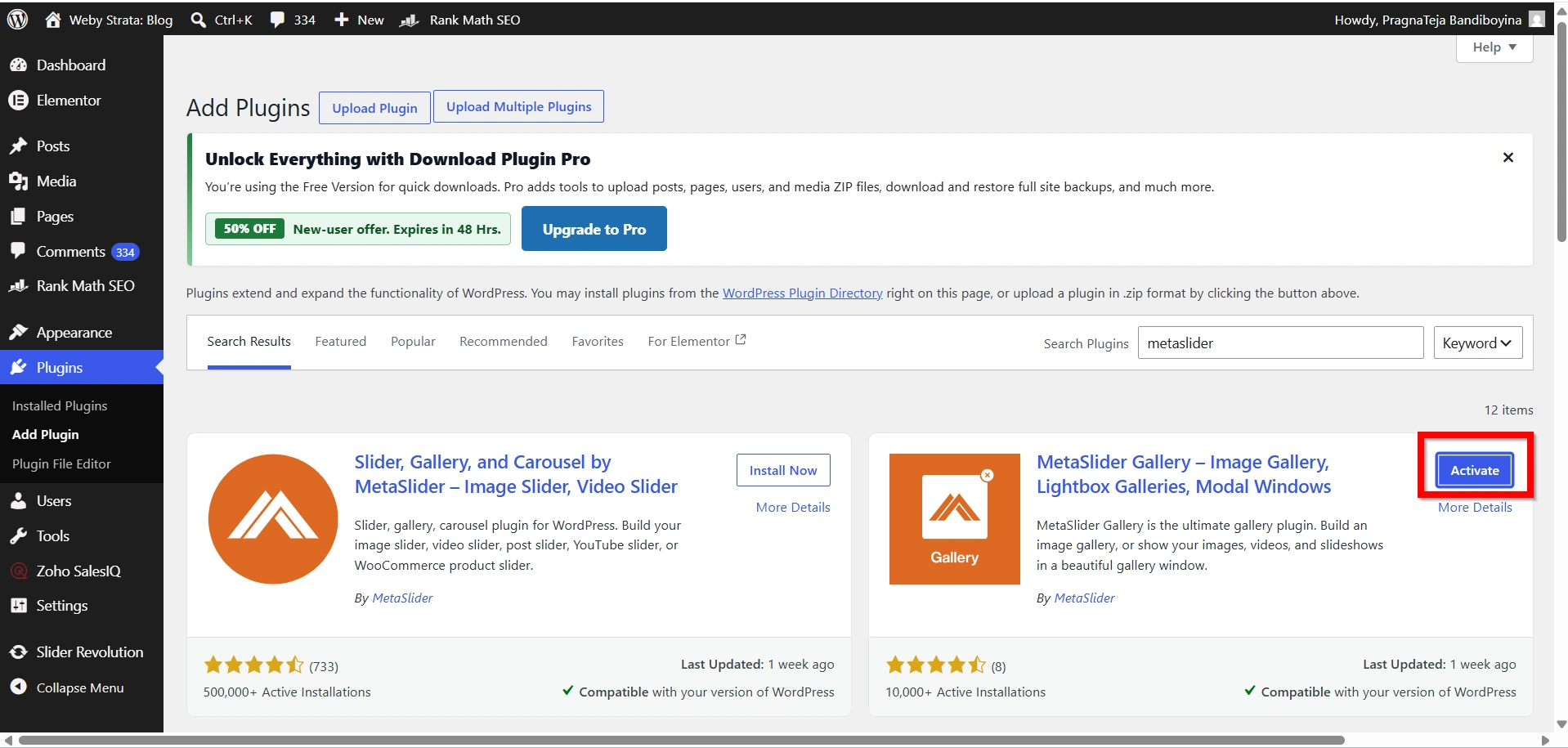
After activation, the MetaSlider menu will appear in the WordPress dashboard.
Step 2: Create a Slider
Next, create the slider that you want to display.
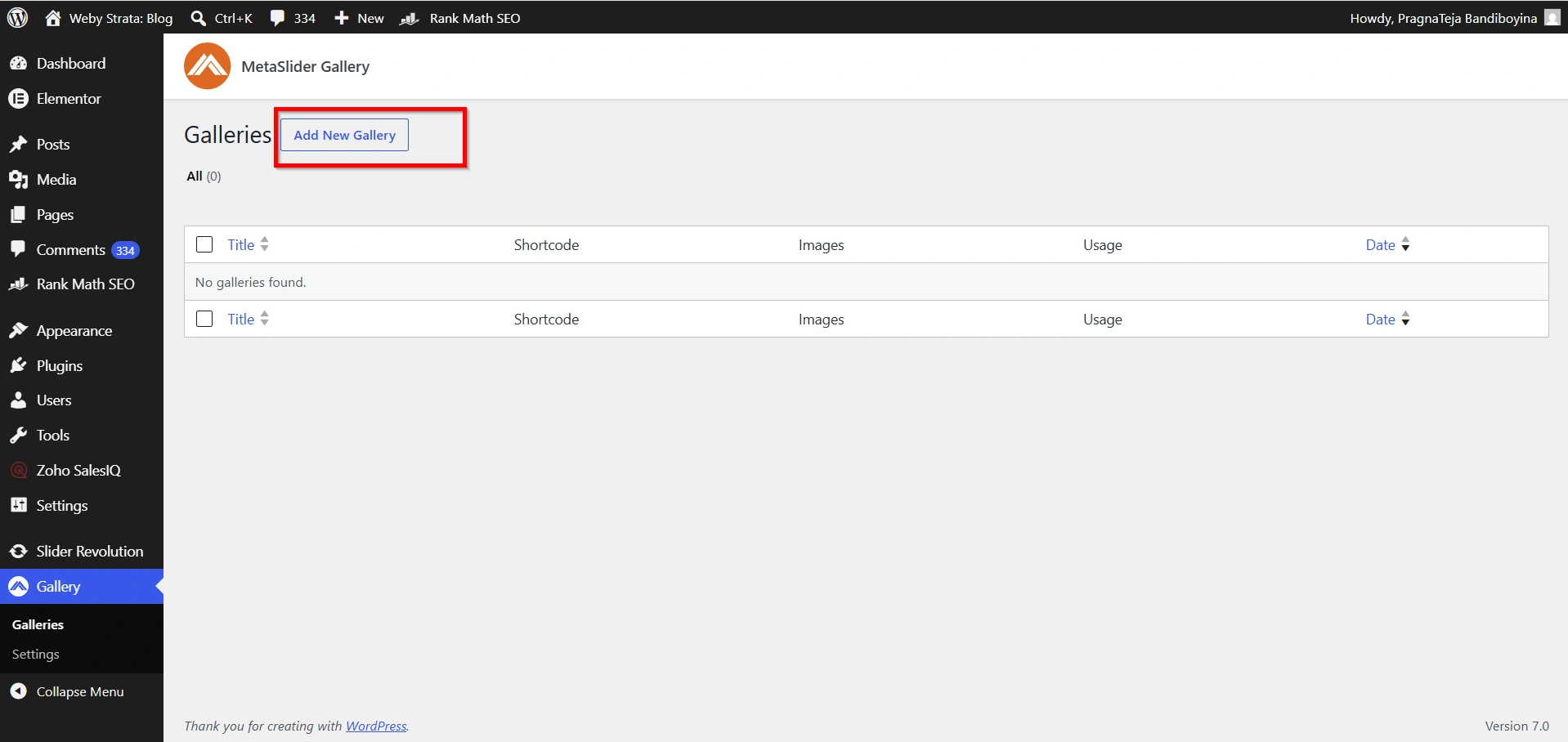
- Click Gallery from the left-hand menu then Click Galleries.
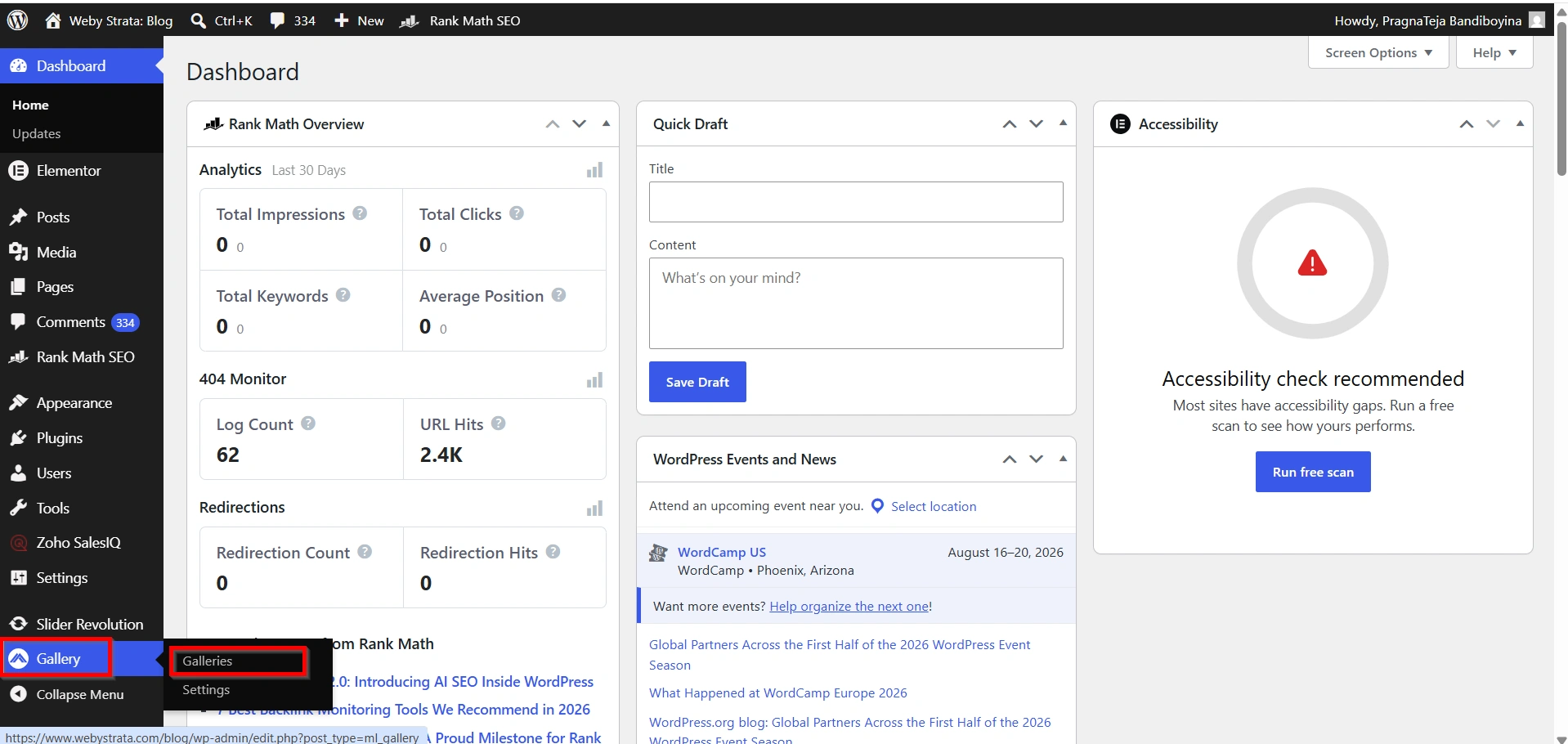
2. Select Add New Gallery.
3. Upload the images you want to include.
4. Configure the slider settings according to your requirements.
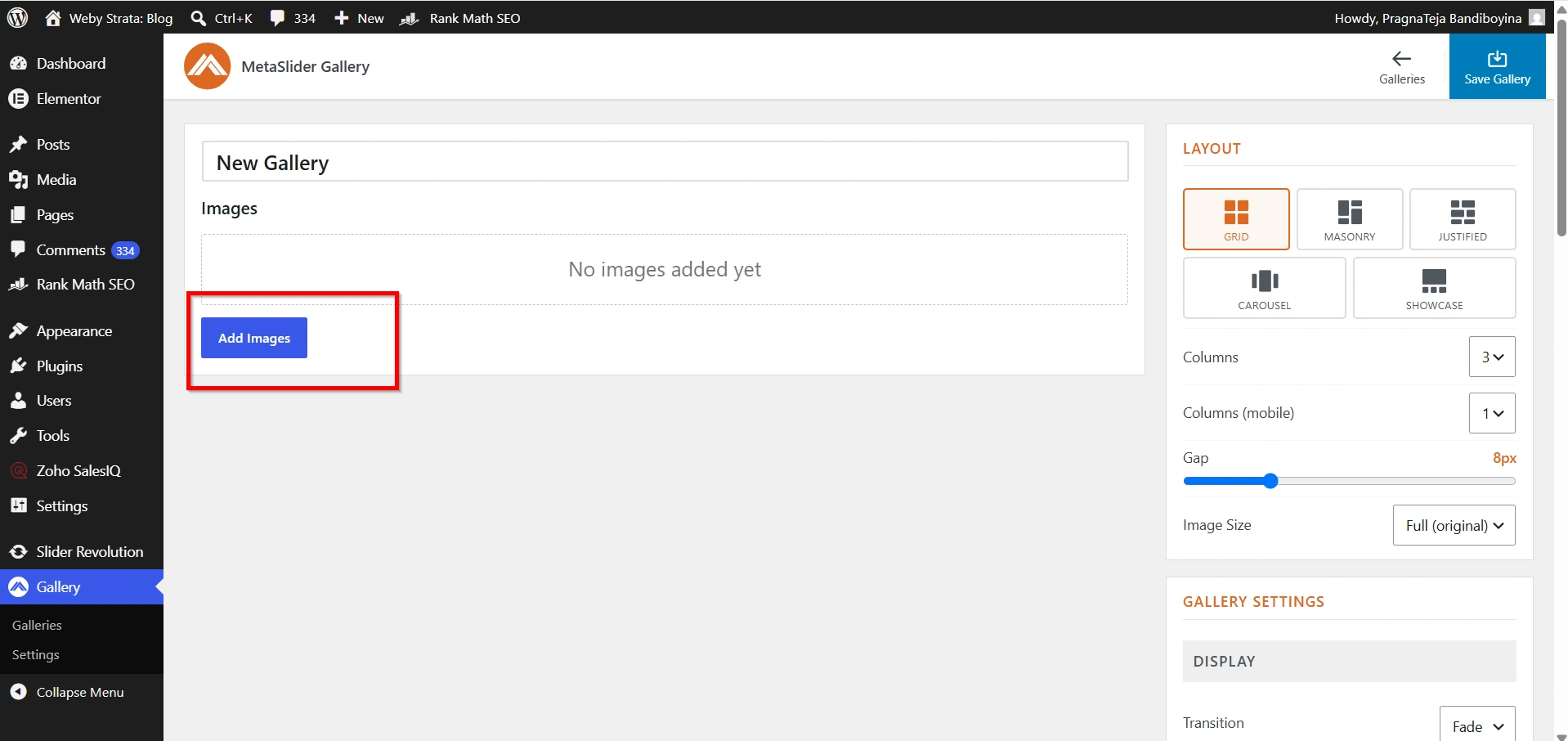
5. Save the slider.
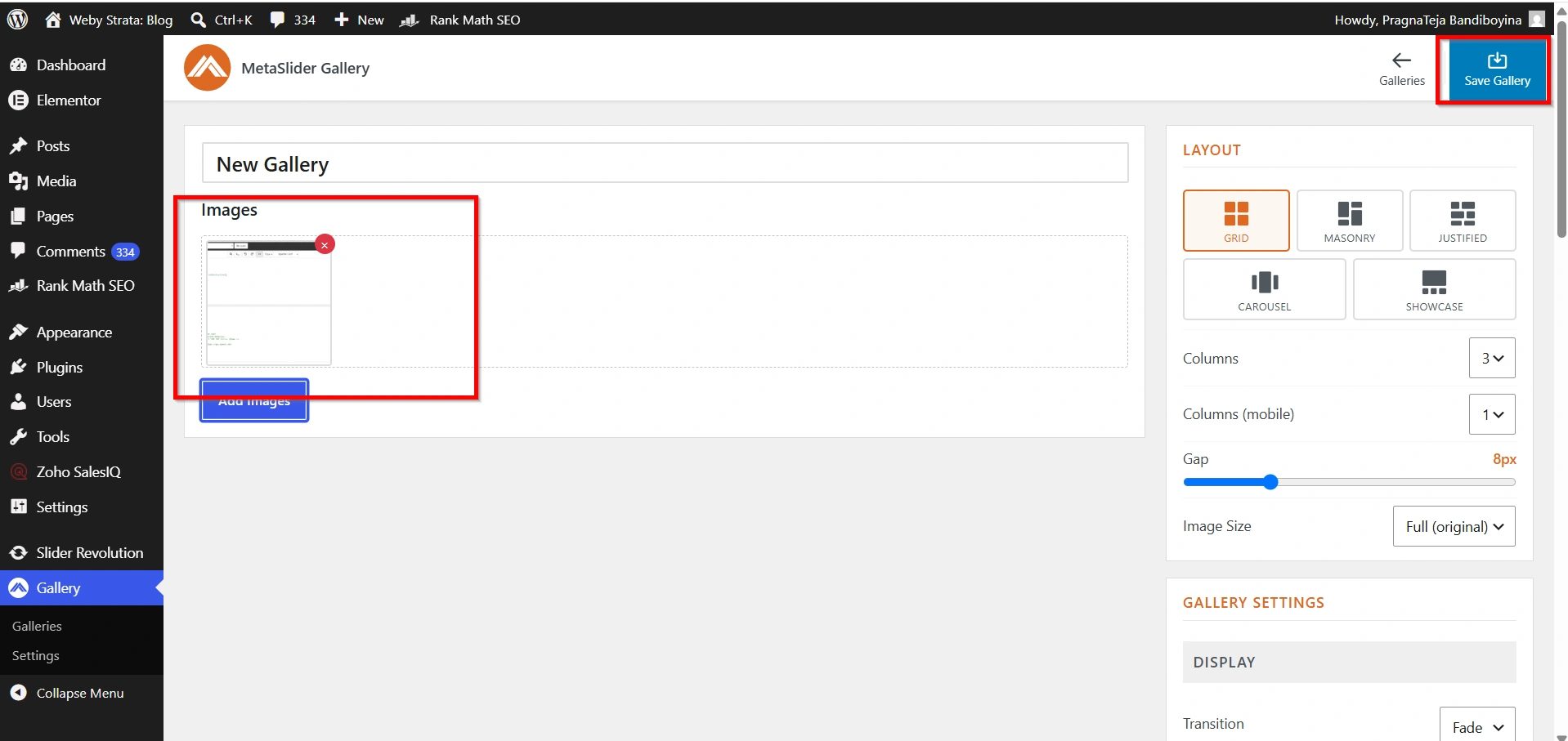
Once saved, MetaSlider automatically generates a shortcode for the slider.
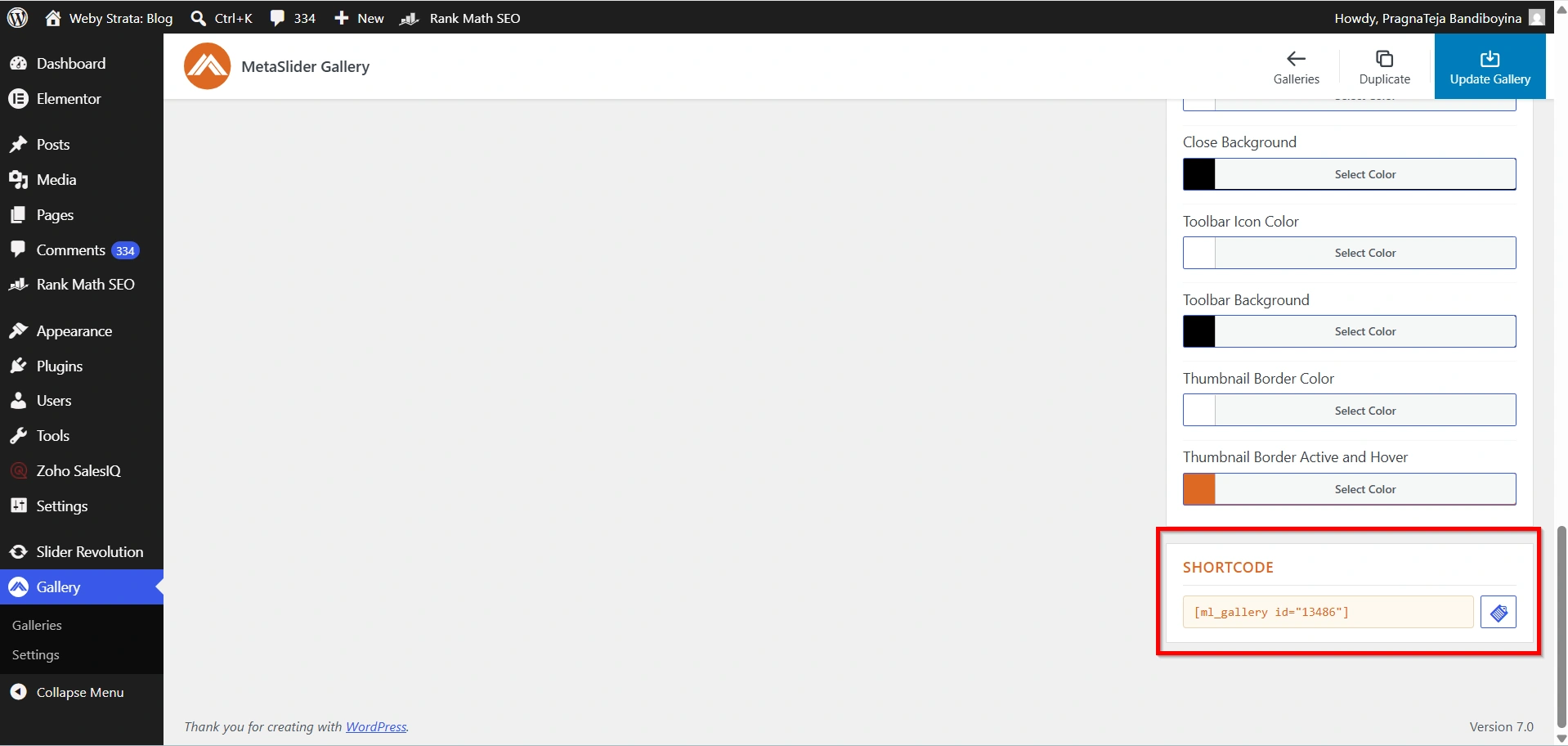
Step 3: Copy the Slider Shortcode
After saving the slider:
- Locate the shortcode displayed within the MetaSlider interface.
- Copy the shortcode.
Example:
[metaslider id="123"]
You will need this shortcode when adding the do_shortcode() function to your theme file.
Step 4: Access Your Website Files
Now you need to edit the appropriate theme file.
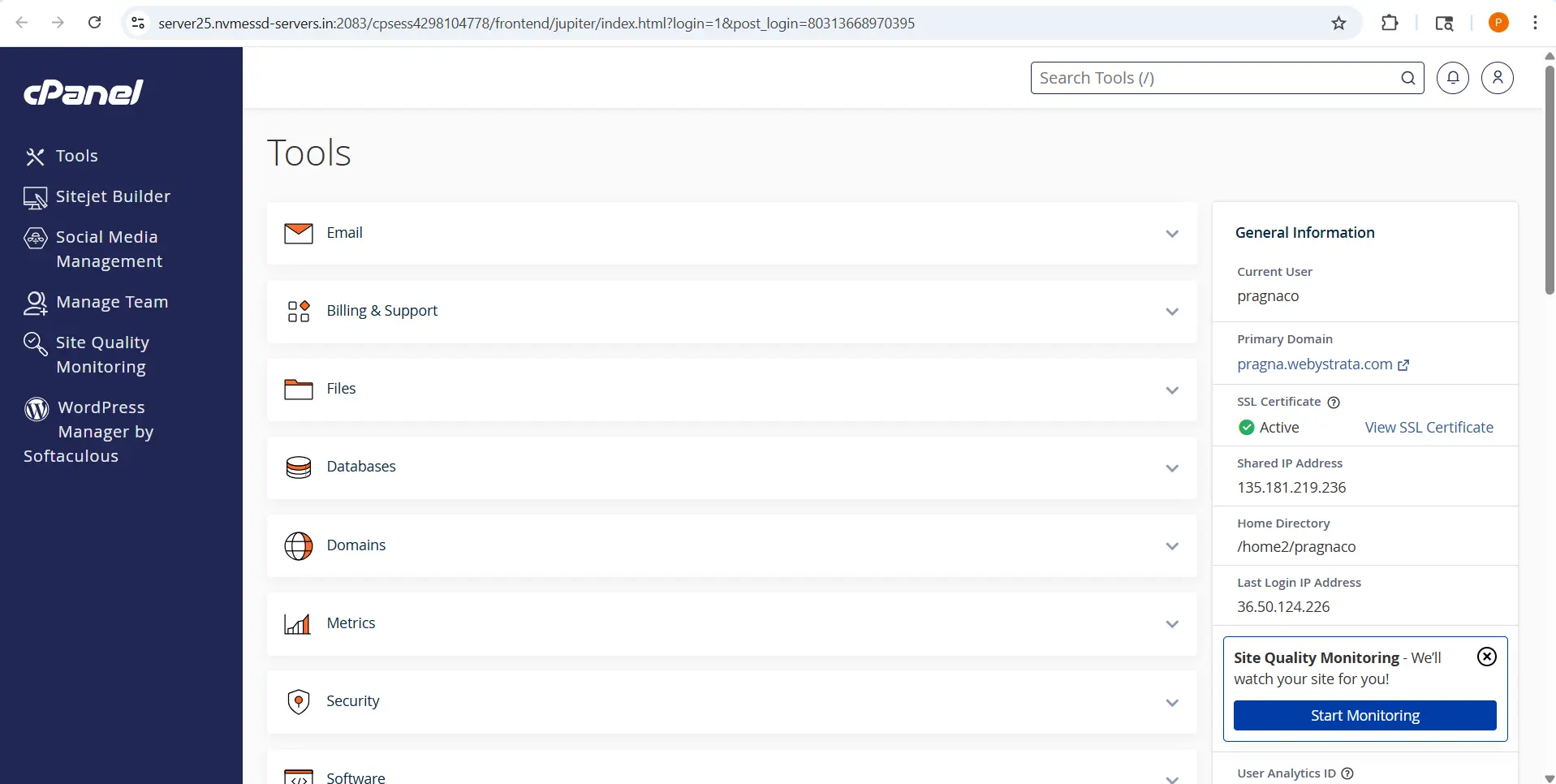
- Log in to your hosting control panel.
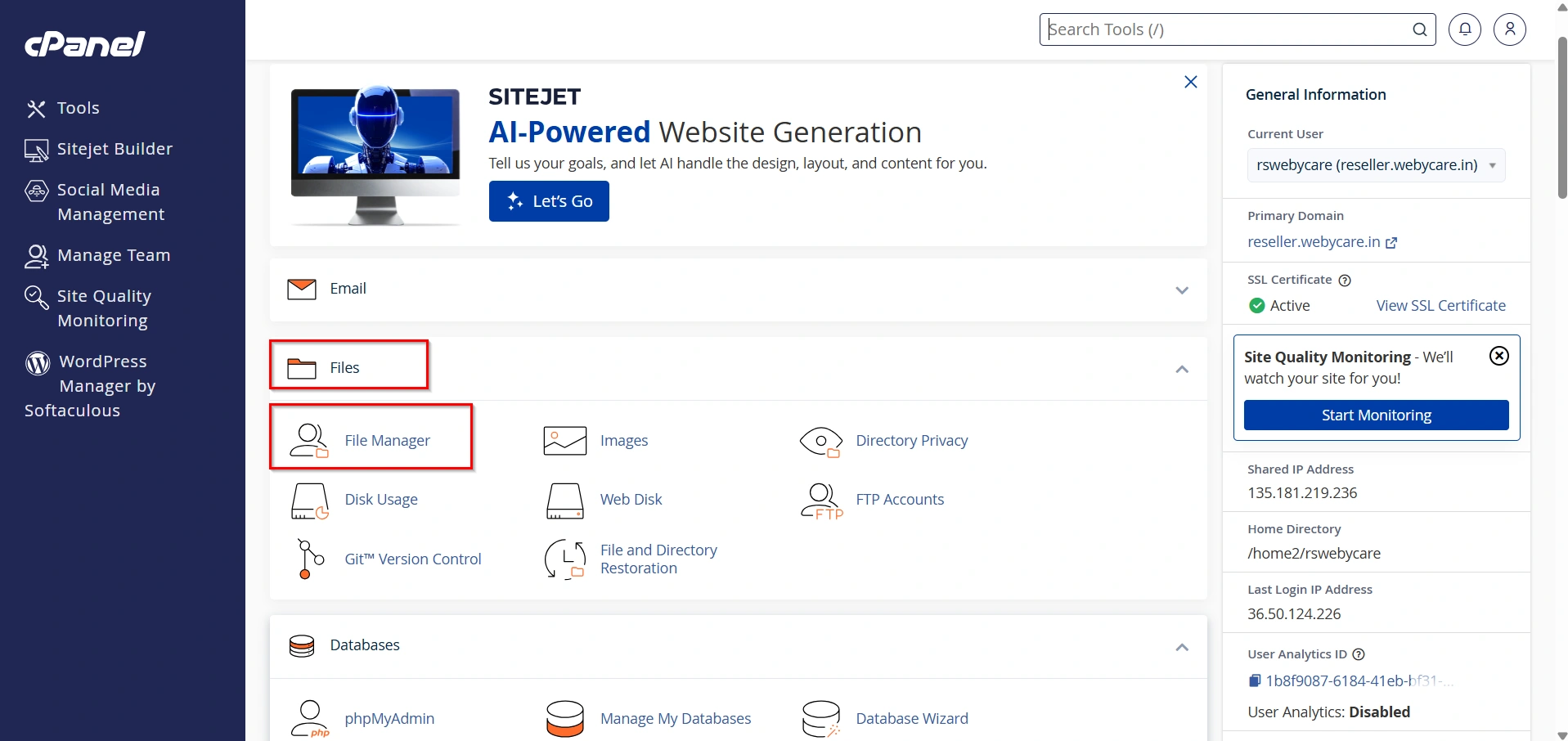
2. Go to Files then File Manager.
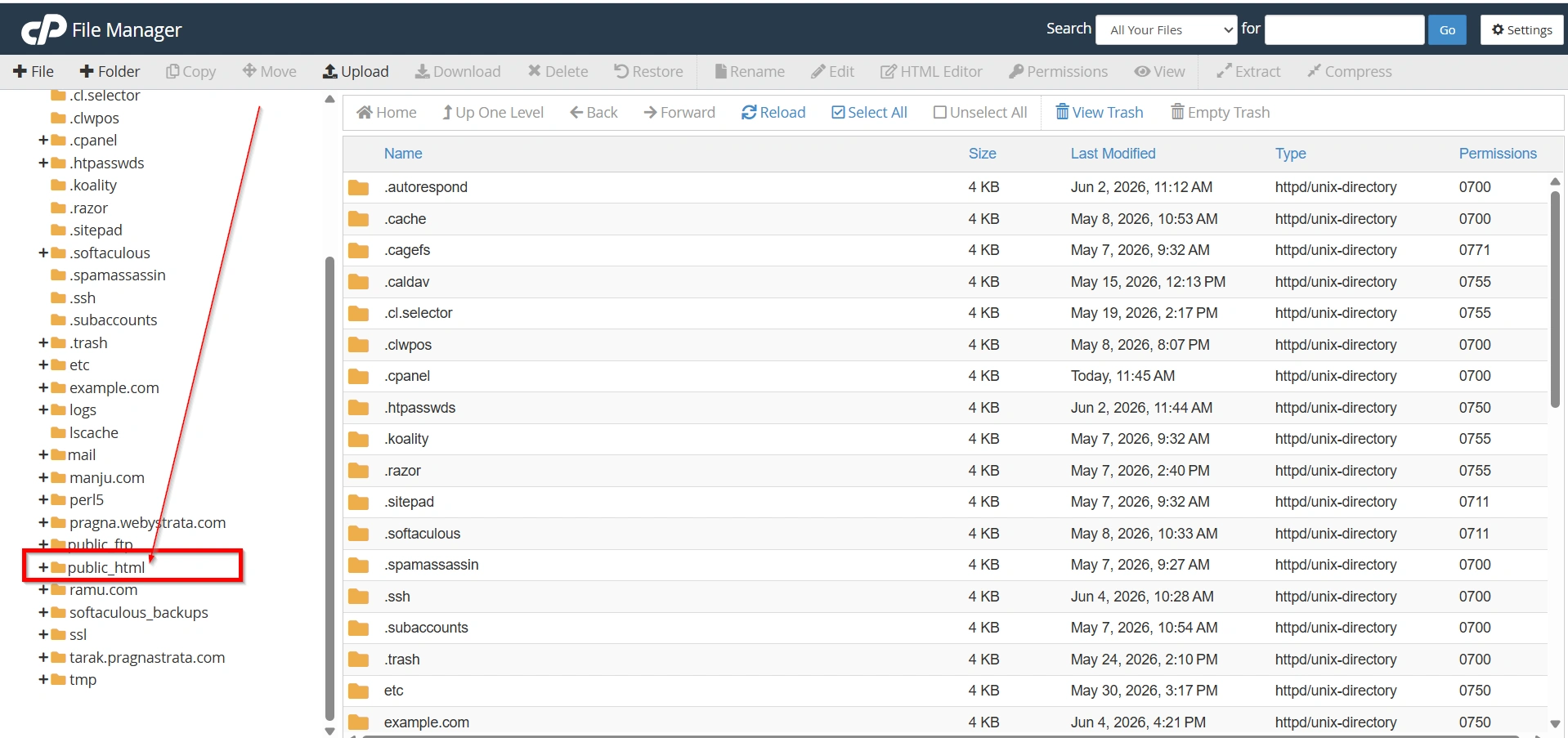
3. Navigate to:
public_html/
wp-content/
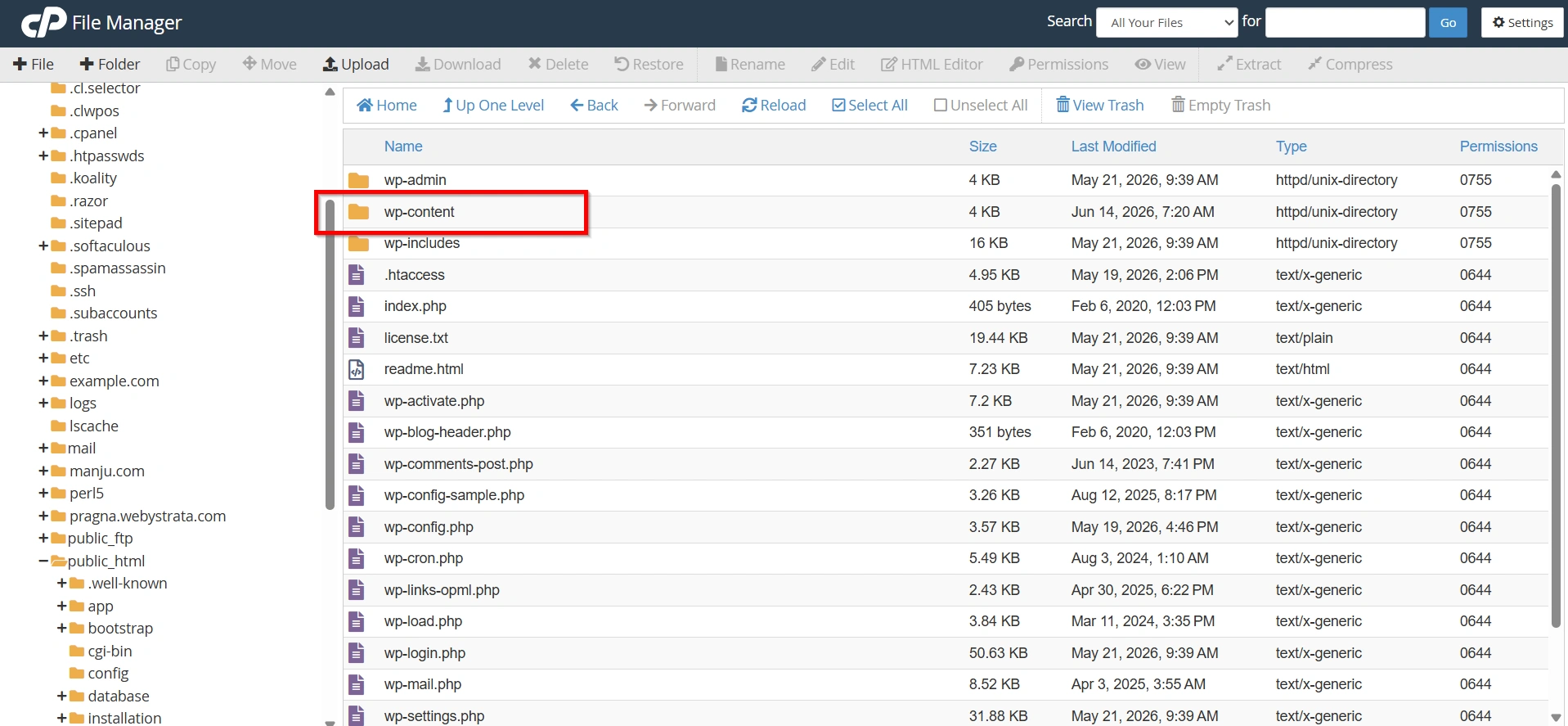
themes/
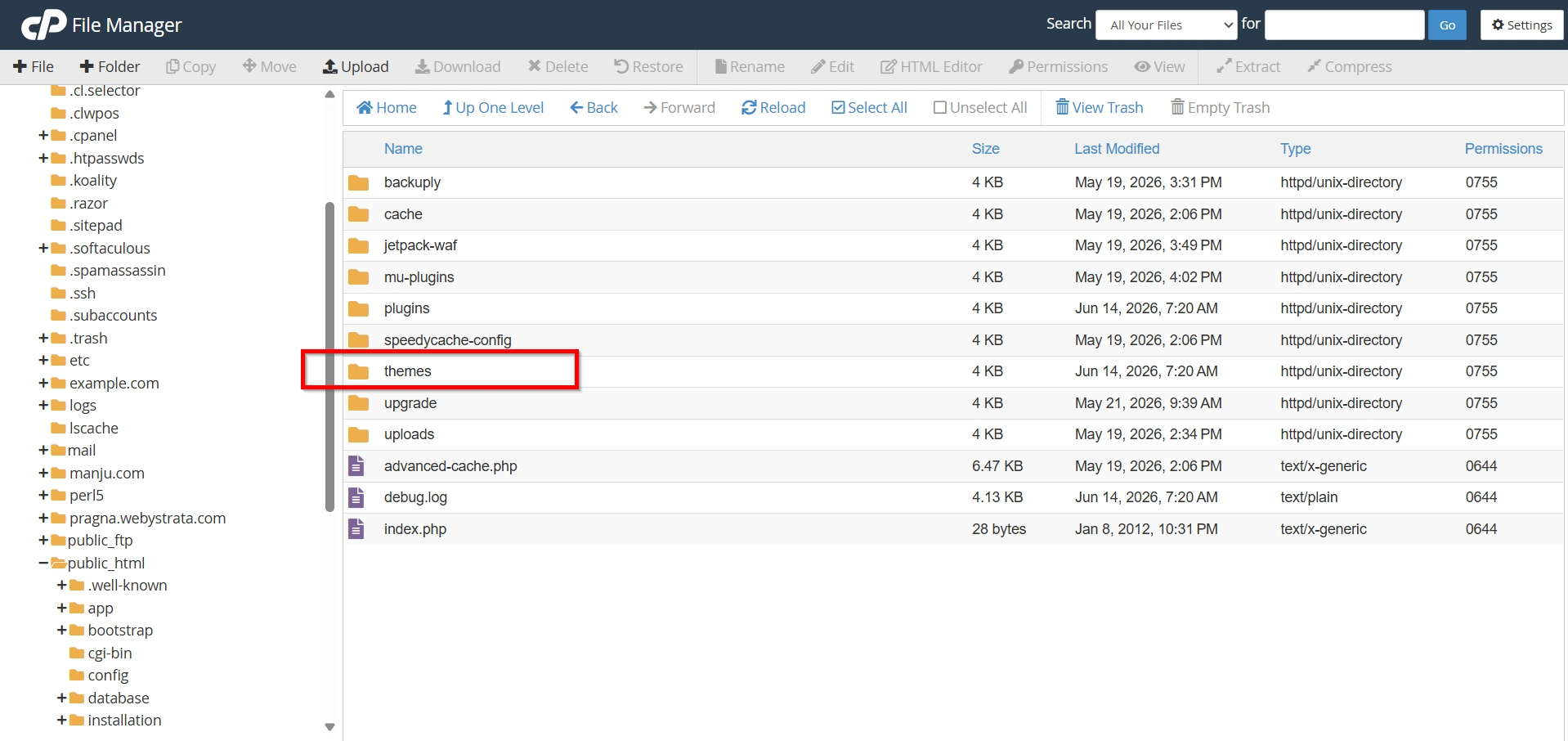
- Open the folder for your currently active theme.
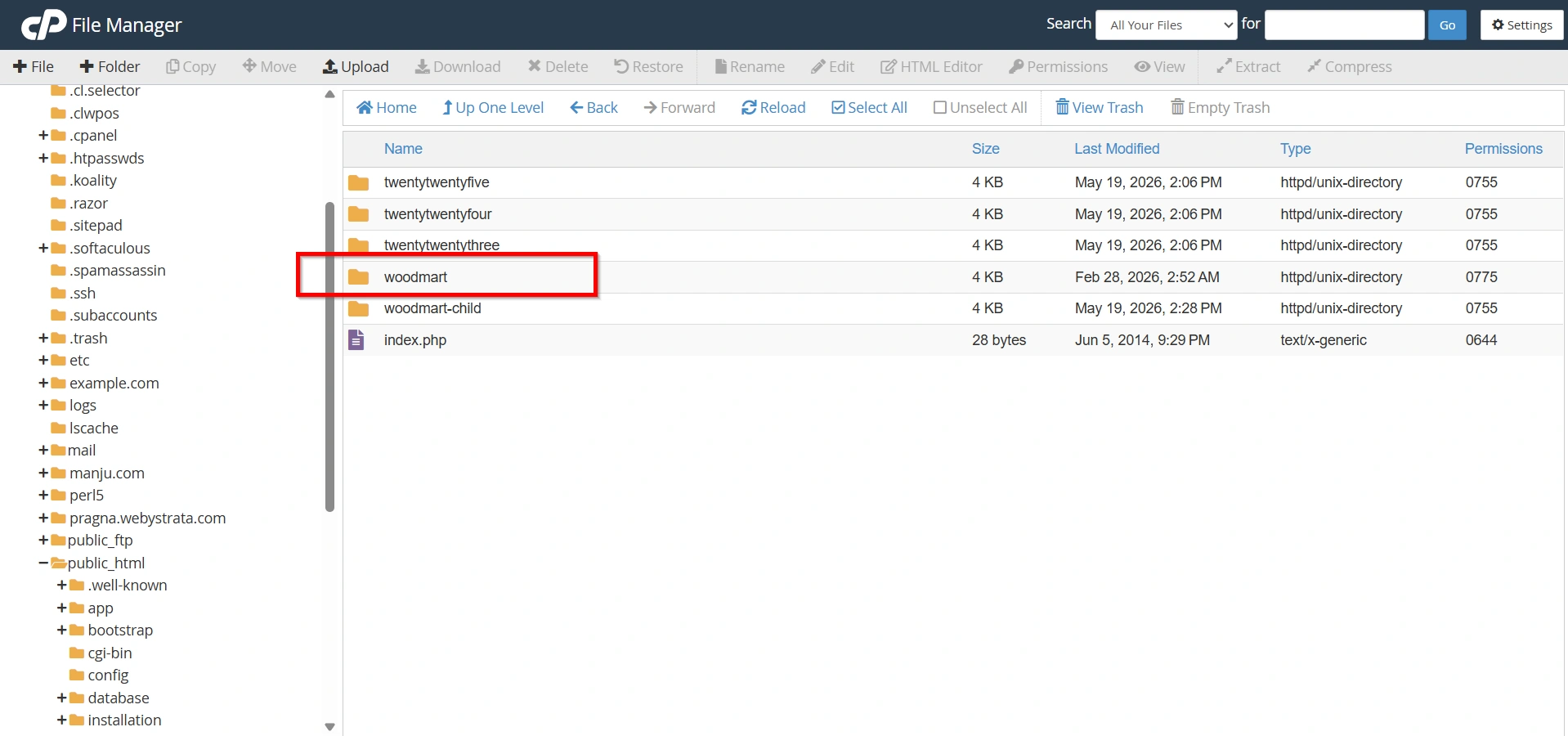
Step 5: Edit the Header File
To display the slider in the website header:
- Locate the header.php file.
- Click Edit.
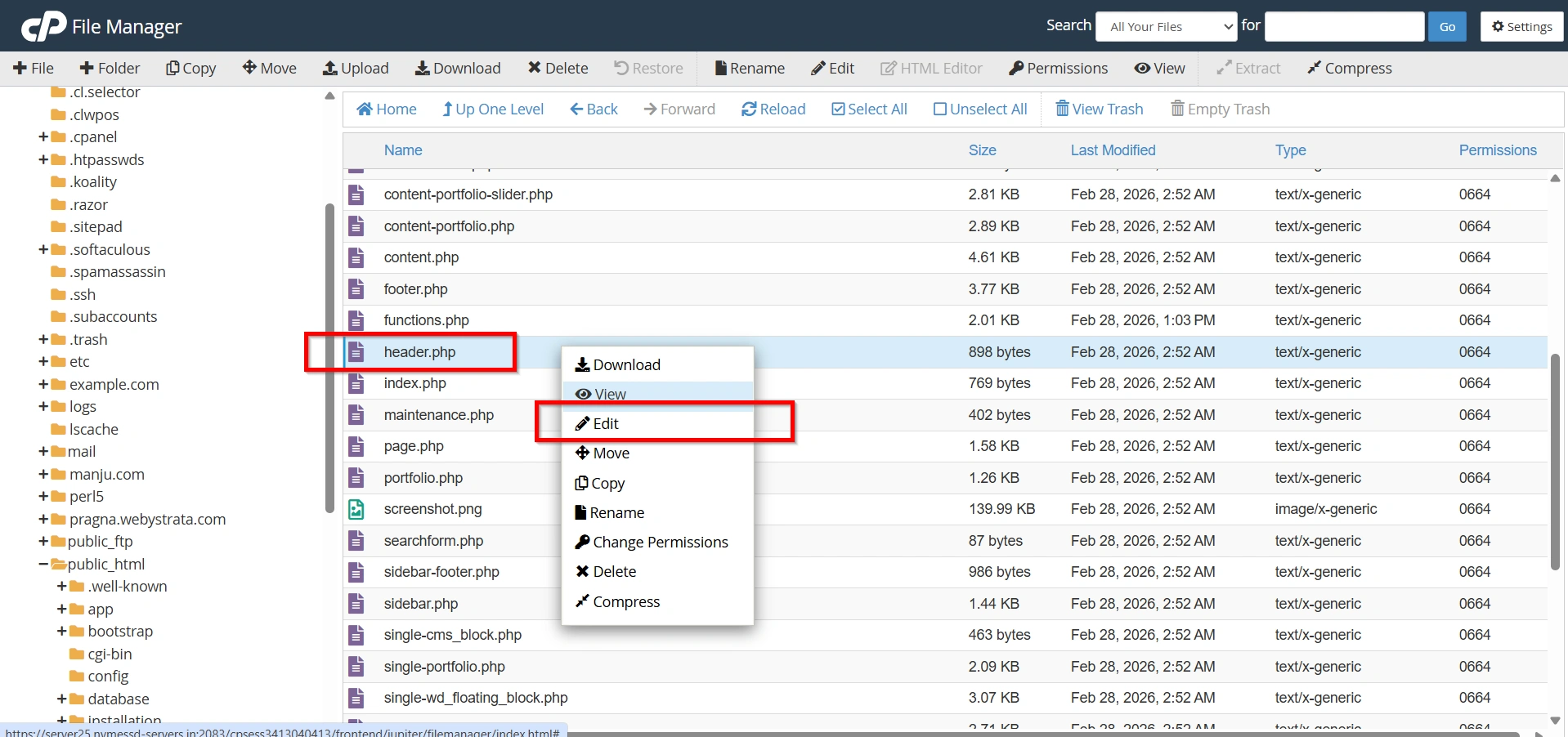
3. Again Click Edit.
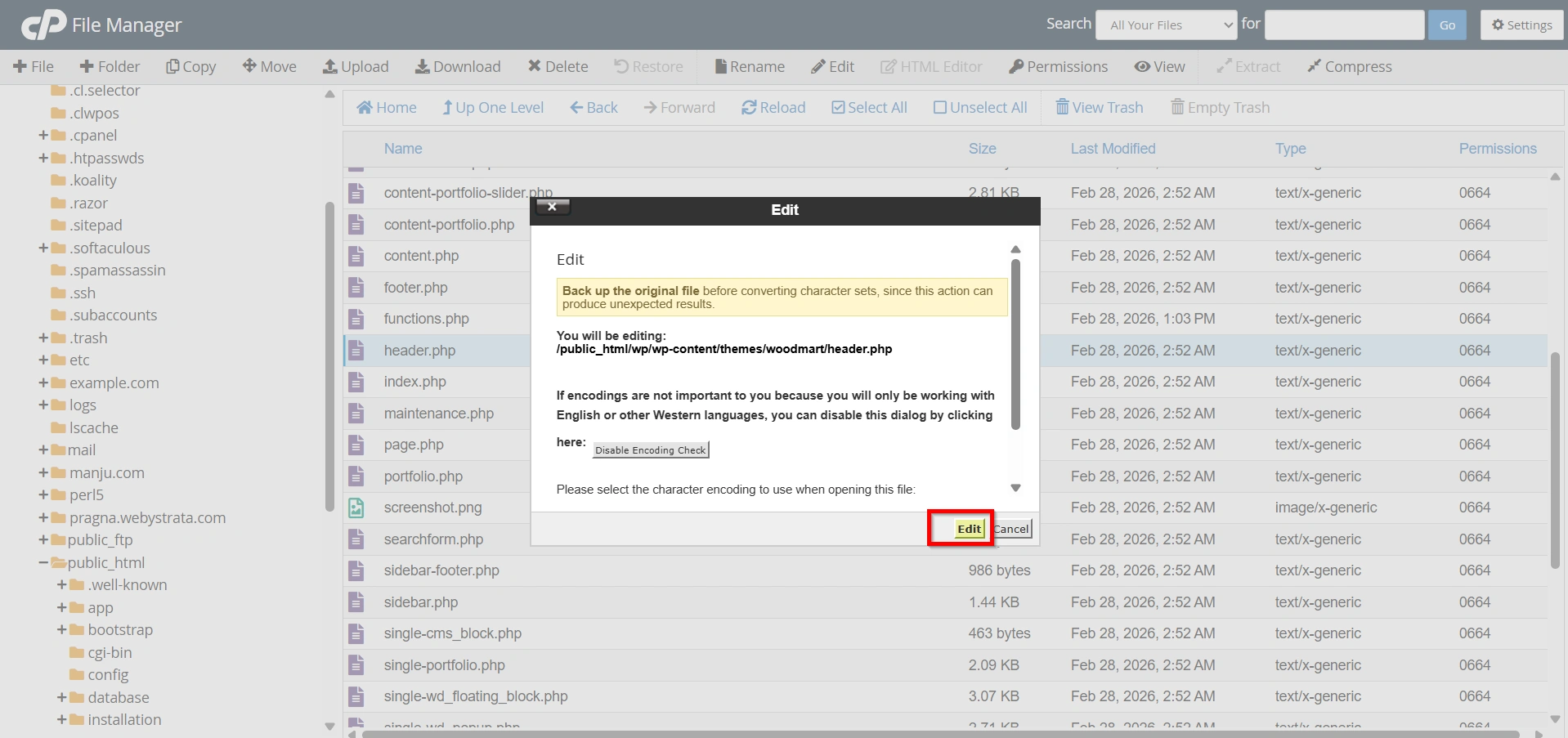
Depending on your design, this could be below the navigation menu or above the page content.
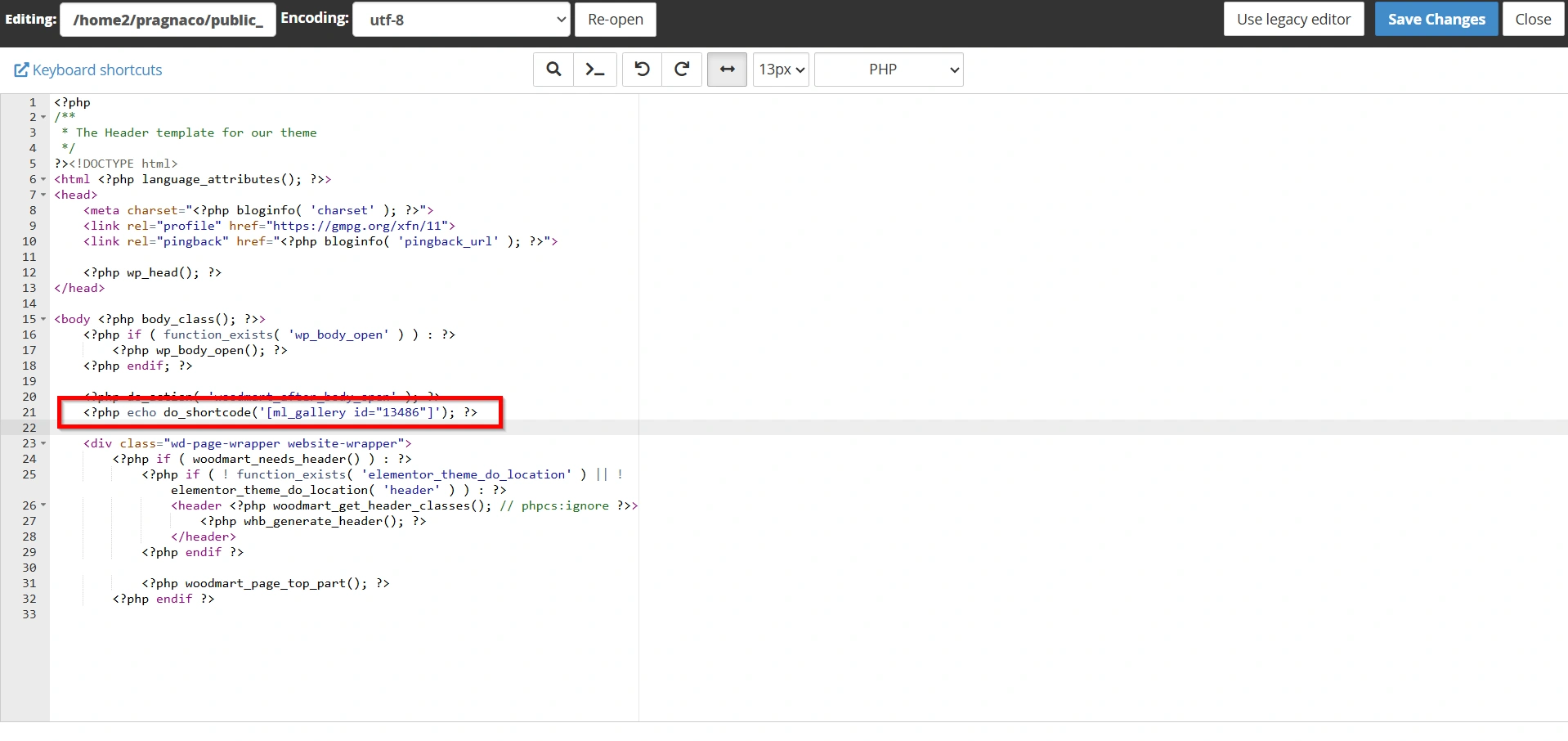
Step 6: Add the do_shortcode() Function
Insert the following code:
<?php echo do_shortcode('[metaslider id="123"]'); ?>
Replace the shortcode with the one copied from your MetaSlider plugin if it differs.
This tells WordPress to process the shortcode and display the slider output at that location.
Many developers regularly Use WordPress do_shortcode in theme files because it allows plugin content to be displayed exactly where needed.
Step 7: Save the Changes
After adding the code:
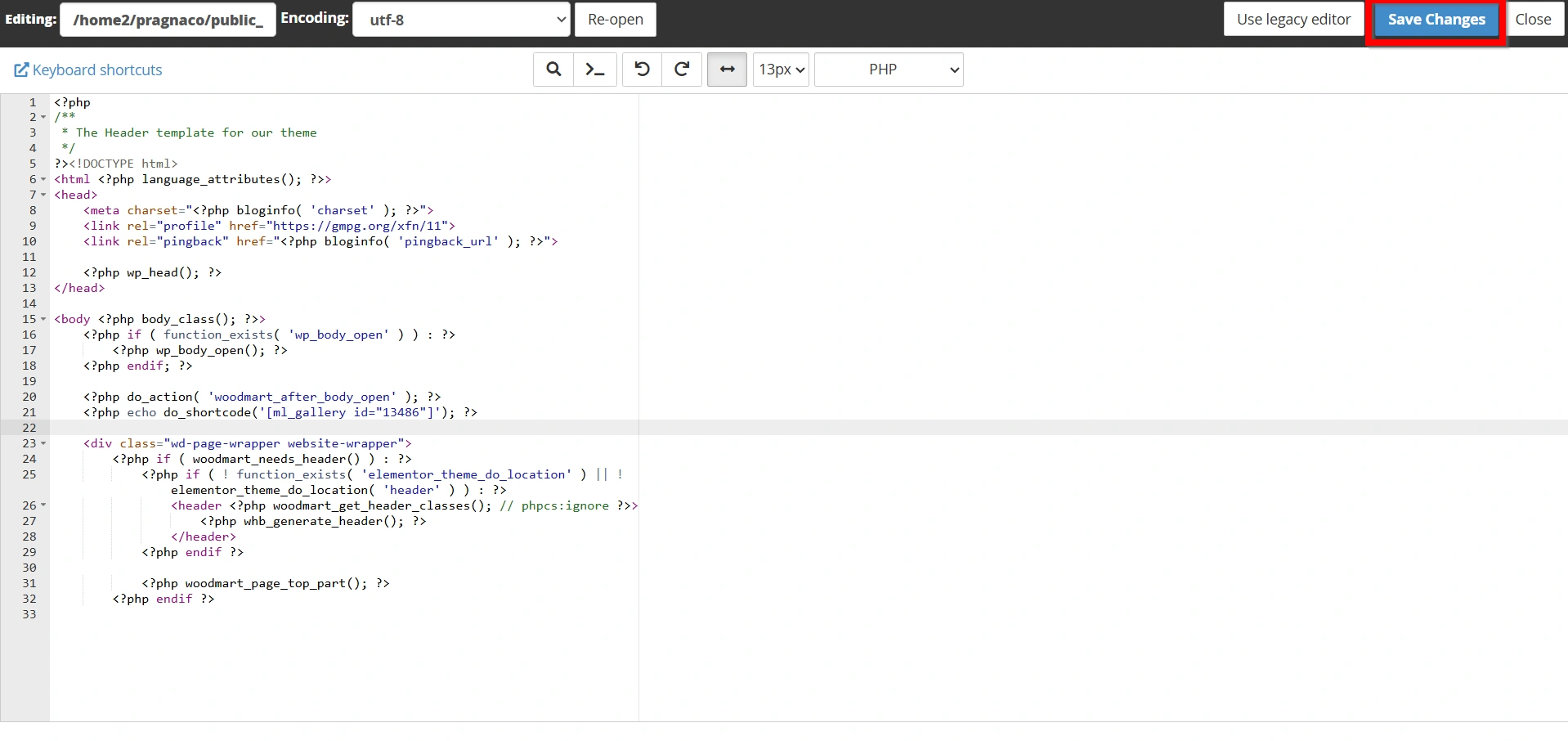
- Save the header.php file.
- Clear any caching plugins.
- Refresh your website.
Your changes should now be active.
Step 8: Verify the Slider Display
Finally:
- Visit your website.
- Check the header area.
- Confirm that the slider is displaying correctly.
If the shortcode appears as plain text instead of a slider, verify that the plugin is active and the code has been entered correctly.
Why Use WordPress do_shortcode?
There are several reasons why website owners choose to Use WordPress do_shortcode:
- Display content in headers and footers.
- Show sliders above page content.
- Add contact forms to custom template files.
- Insert promotional banners in specific locations.
- Display plugin-generated content in sidebars.
- Improve theme customization flexibility.
- Create dynamic website layouts without extensive coding.
The function offers a simple and effective way to integrate plugin features directly into your WordPress theme.
Benefits of Using WordPress do_shortcode
Using the WordPress do_shortcode() function offers several advantages for website owners and developers:
- Display Content Anywhere
- Enhanced Website Customization
- Easy Plugin Integration
- Improved User Experience
- Reduces Development Time
- Flexible Theme Design
Conclusion
The WordPress do_shortcode() function is a powerful tool for displaying shortcode-generated content outside traditional content areas. Whether you want to add a MetaSlider slider to your header, display a contact form in a custom template, or integrate plugin features into your theme design, this function makes the process simple and efficient. By following the steps outlined above, you can confidently Use WordPress do_shortcode to place dynamic content exactly where it is needed. With proper planning, backups, and the use of a child theme, you can safely enhance your website’s functionality while maintaining complete control over its layout and design.
Originally published on WebyStrata.com Blog.
Related Articles